Links are the connective tissue of the web. When they are built correctly, they help users move through content, give search engines clearer signals about page relationships, and provide assistive technologies with predictable navigation. When they are built poorly, they can create friction for users and reduce the clarity of your page structure.
Divi 5 gives you two distinct ways to make elements clickable. Most modules include the Link Option Group, which can make an entire module or container clickable. The newer Link Module also uses Divi’s link settings, but it outputs a real <a> element in the markup. That gives you a lighter way to add semantic links without using a Text module or styling a full Button module.
This post looks at how those two approaches differ, where each one makes sense, and why using them together is often the most practical pattern.
The Simple Difference
In Divi 5, “clickable” can mean two different things, and they are not the same.
A semantic link is a real HTML <a> tag. Browsers, screen readers, keyboard navigation, and search engines all recognize it as a link.
A dynamic click area is a larger clickable surface created through Divi’s Link Option Group. It improves usability by letting people click anywhere on a card, column, or module, but it is not the same as outputting a full semantic anchor for that whole area.
That difference matters because the two approaches solve different problems. Dynamic click areas are great for usability. Semantic links are important for structure, accessibility, and crawlable markup. In many real layouts, especially cards and looped designs, the best solution is to use both together.
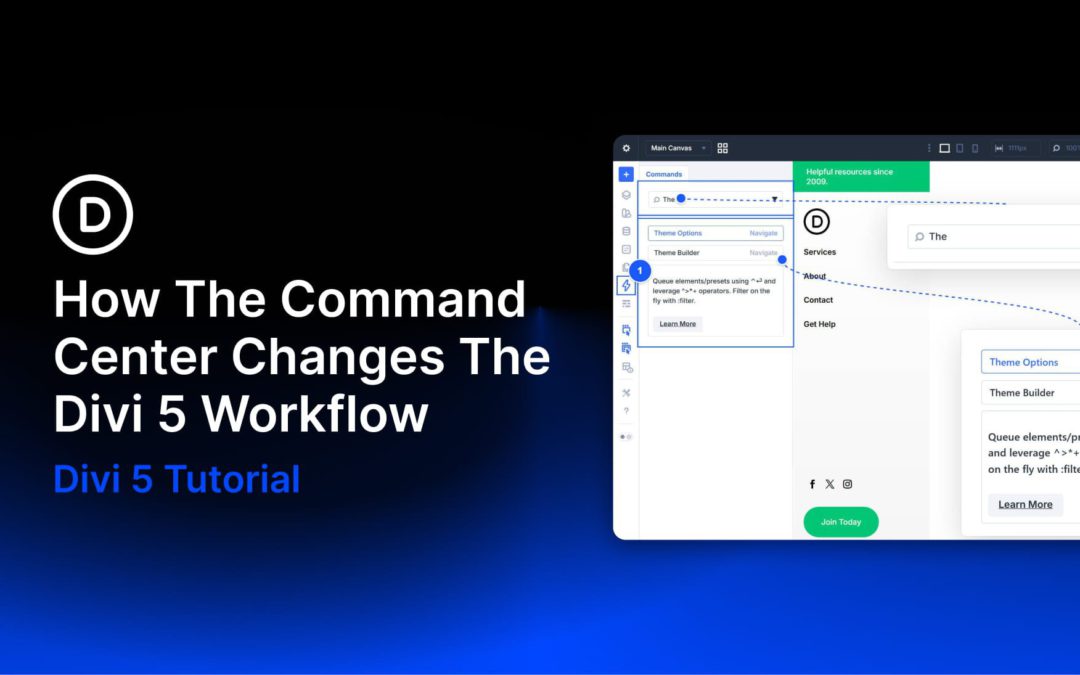
Divi 5 gives you more than one way to work. You can click through settings panels and modals when you want fine-grained control. You can use keyboard shortcuts for speed when performing smaller, repeatable actions. The Command Center adds a third option. It lets you trigger more complex builder tasks at keyboard speed, including navigation, context changes, and builder actions, without relying on a long list of dedicated shortcuts.
You open it, start typing, and run the matching command you need. That simple shift changes the workflow more than it might seem at first. Instead of hunting through the interface, you can move directly to the page, panel, state, or action you want from one searchable input.
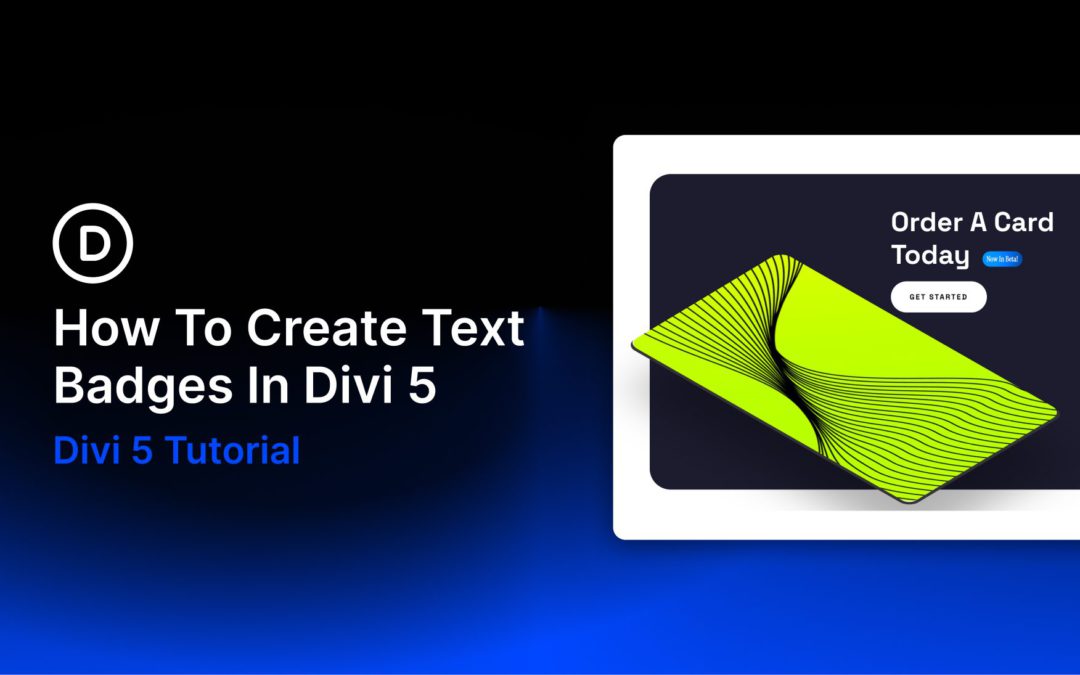
Badges are a small part of web design, but they solve a very specific problem well. They add quick context without interrupting the rest of the layout. You see them on product cards, pricing tables, documentation pages, and feature lists because they can communicate something useful in very little space.
Labels like New, Sale, Beta, or Popular are simple, but they help guide attention and clarify meaning at a glance. That is the real value of a badge. It does not carry the whole design. It adds a clear visual signal exactly where it is needed.
The good news is that this kind of detail is easy to build in Divi 5. You do not need a plugin or a workaround to create a clean text badge. With the right mix of text styling, spacing, background, and sizing, you can build one quickly and make it fit naturally into the rest of your site.
What Are Text Badges?
Text badges are short, styled labels that add context without taking up much space. You will see them clipped to product cards, tucked into pricing tables, attached to headings, or placed beside menu items. Their job is not to explain. Their job is to signal.
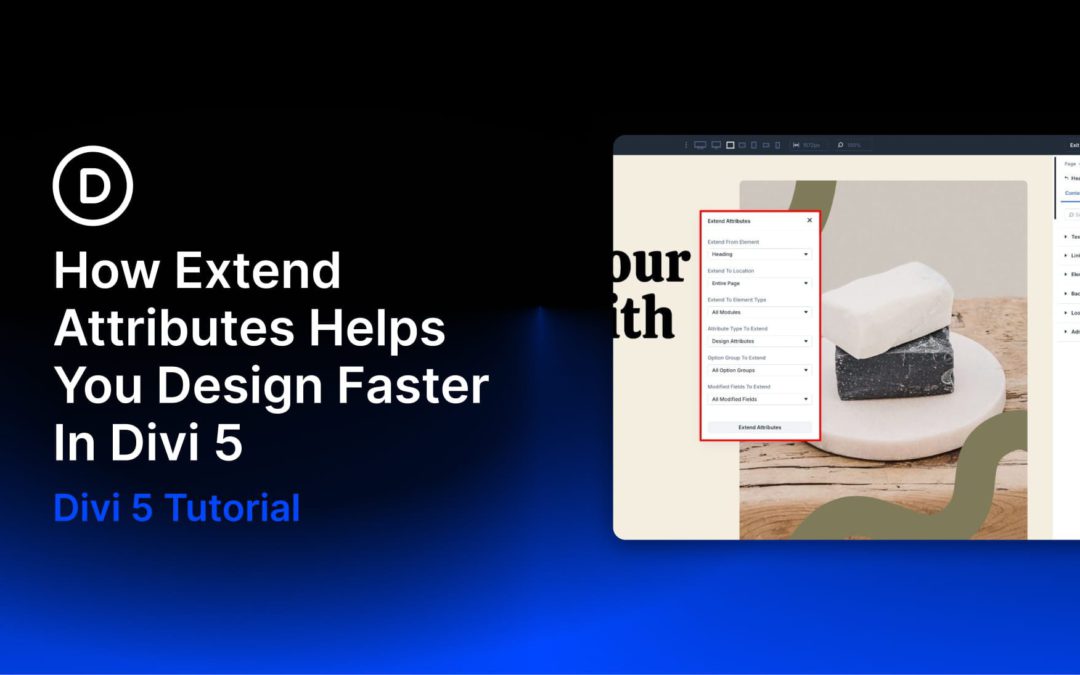
Divi 5 includes several features that help speed up your workflow and keep designs consistent as layouts grow more complex. Extend Attributes is one of the most practical because it lets you take styles, content, or presets from one element and apply them across other elements in just a few clicks.
That makes it especially useful during the build’s refinement stage. If you need to match spacing across repeated modules, sync button styles, clean up imported sections, or roll out a design change without manually updating each element, Extend Attributes can save significant time. It also fits naturally into Divi 5’s broader workflow without making the process feel repetitive or manual.
Here are three practical scenarios that show how it works.
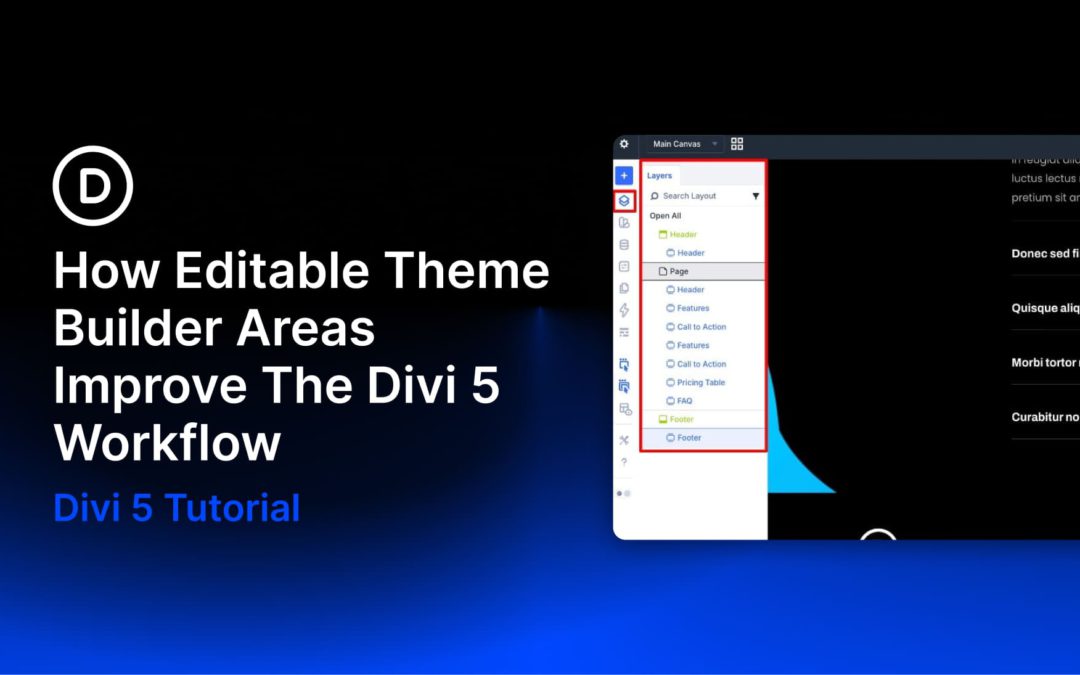
Building a complete website in Divi has traditionally involved a fair amount of back-and-forth. You’d work on a page, notice something off in the header or footer, exit the builder, open the Theme Builder, make the fix, and then return to the page you were editing. It wasn’t a dealbreaker, but it added friction to a full-site build with multiple templates and global elements in play.
Divi 5 now lets you edit Theme Builder areas directly in the builder, regardless of whether you’re working on a page or a template-generated view. That sounds like a small change until you consider how much of a site build happens in those constant trips between content editing and template editing.
What Is Full Site Editing In Divi 5?
Divi has always been more than a page builder. With the Theme Builder, you could already create custom headers, footers, blog post templates, product templates, category templates, and other structural parts of your site. What changes in Divi 5 is the editing experience.
Receive the latest WordPress, Divi, SEO and design news in your inbox for FREE from Web Design Solutions Unleashed.
We use cookies to ensure that we give you the best experience on our Web site. If you continue to use this site we will assume that you are happy with it.