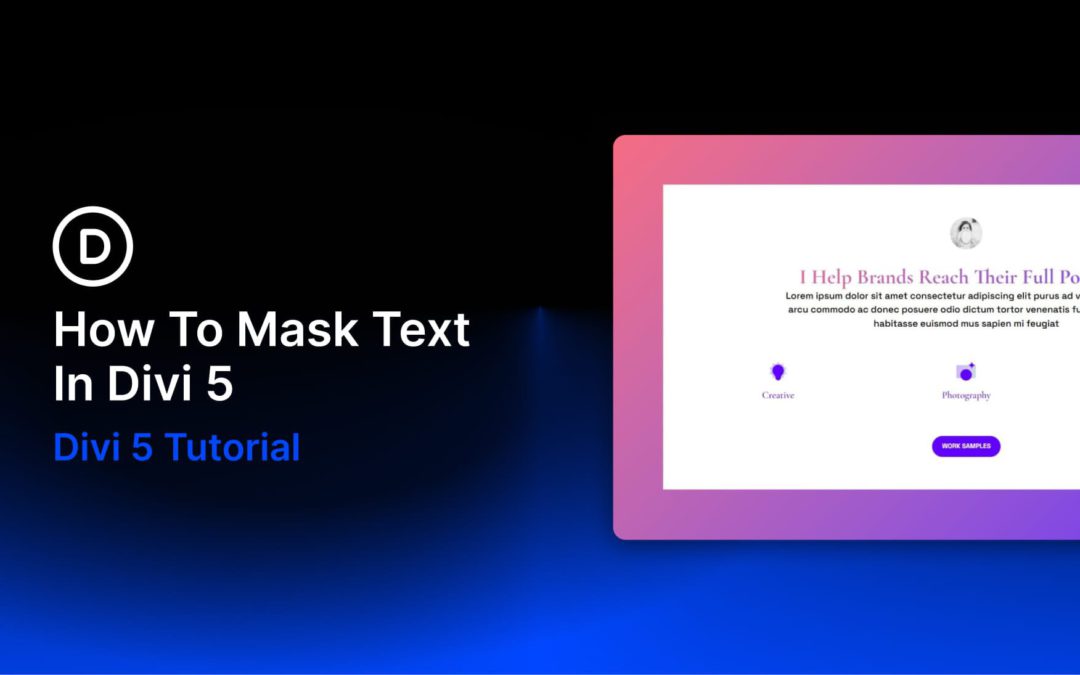
Some design effects look more complex than they are. Text masking is one of them. It looks like something you would need Photoshop, custom CSS, or a developer to create, but the basic effect can be built directly in Divi 5 using native background, color, and blend mode settings.
The result is simple in concept: a heading appears to be filled with a gradient, image, GIF, or video instead of a flat text color. In this post, we’ll build that effect step by step and cover the design choices that make masked text look intentional rather than overdone.
Divi has always given you ways to create custom menus, most notably with the classic Menu module. That module is still useful, but it is also an all-in-one system, which means it can feel limiting when you want full control over structure, styling, dropdown behavior, or mobile navigation.
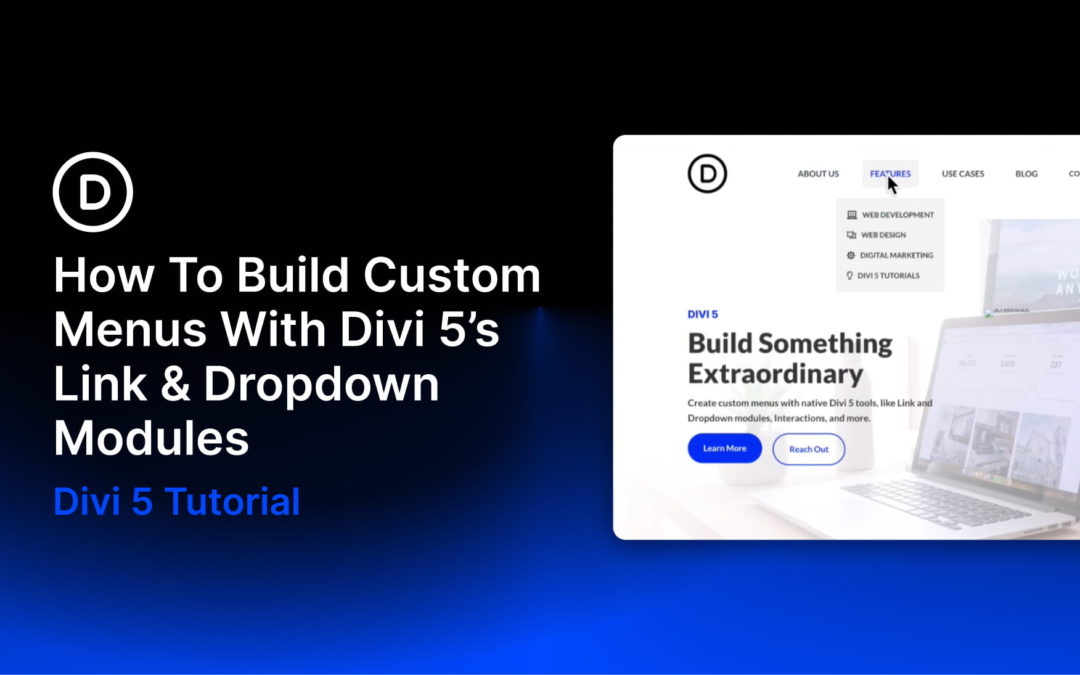
With Divi 5’s new menu features, you can build navigation from smaller, more flexible pieces. The new Link and Dropdown modules let you create custom menus, dropdowns, mega-menu style layouts, and mobile navigation directly in the Visual Builder, without relying on third-party plugins or custom code.
In this step-by-step guide, we’ll build a custom menu with submenus and a separate mobile version using native Divi 5 features.
Editing a website rarely happens in one place. You build a page, notice something off in the header, then leave to adjust a template. A few minutes later, you jump again to change a footer or archive layout. That context switching adds friction, especially when you are managing a whole site instead of a single page.
Different builders have tried to solve that problem in different ways. Some reduce the back-and-forth. Some still separate key parts of the site into distinct editing sessions. Divi 5 takes a more unified approach by bringing more of the site into one builder session.
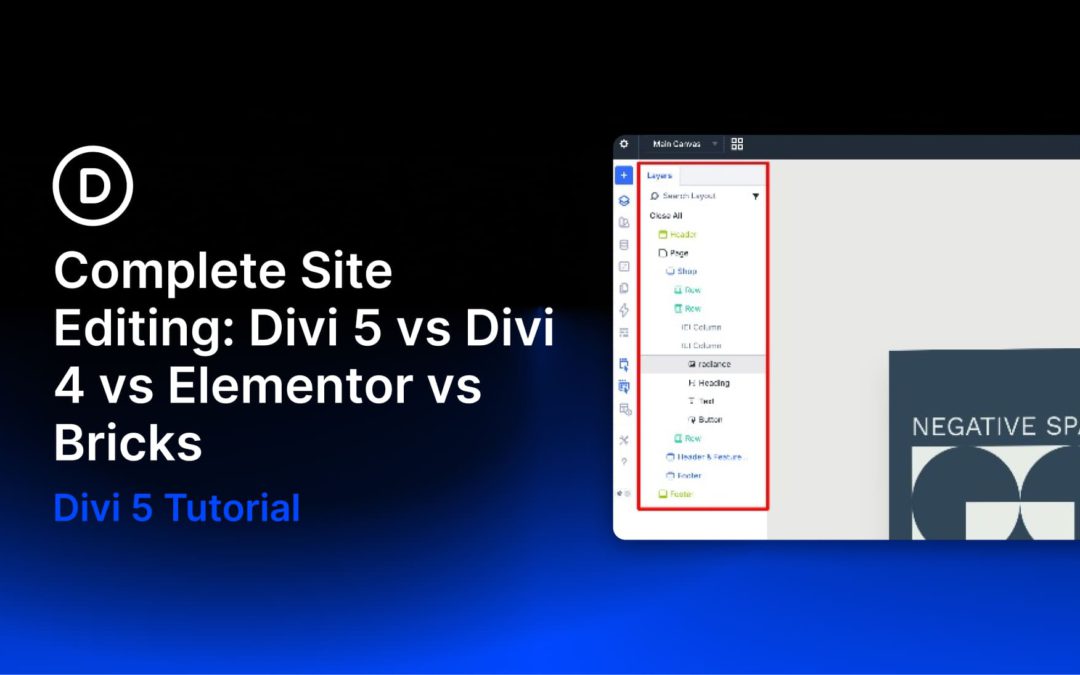
In this comparison, we’ll look at how Divi 5, Divi 4, Elementor, and Bricks each handle full site editing, and what those differences mean when you’re actually building.
What Complete Site Editing Actually Means
At its best, complete site editing means your site is reachable from wherever you are working. You open a page, and the header, footer, and page content are all available in context. That lets you adjust navigation, refine the content area, and update the footer without leaving the builder or switching to a separate template screen.
There is a design-system side to this too. When layouts, styles, and global elements work together, a single update can carry through every part of the site that shares it. Colors, spacing, typography, and repeated components stop behaving like isolated settings and start behaving like a connected system.
That is what makes full site editing genuinely useful. It is not just about seeing more things at once. It is about reducing context switching and making the whole site feel easier to manage as one working environment.
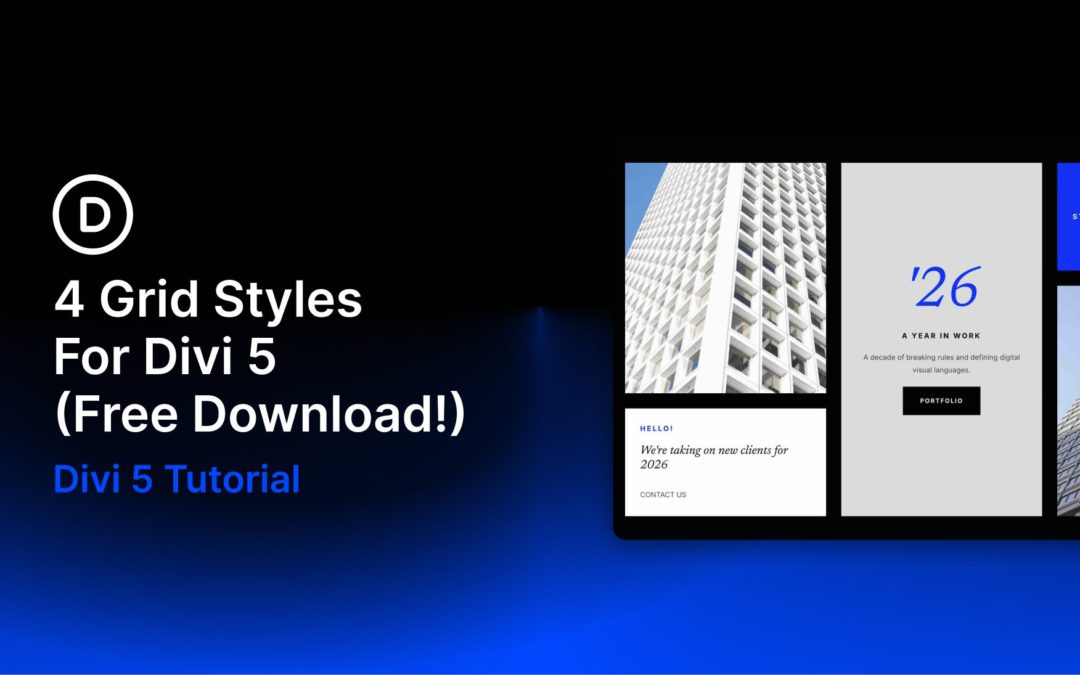
Divi 5 makes it easy to build clean, visually engaging layouts with more structure and variety. In this free pack, you’ll get 4 Styled Grid Layout Designs that are perfect for landing pages, portfolios, featured content sections, editorial layouts, business pages, and more. Each one gives you a polished starting point with strong visual rhythm, layered imagery, and modern spacing built right in. Import a layout, replace the content, and you’re ready to go.
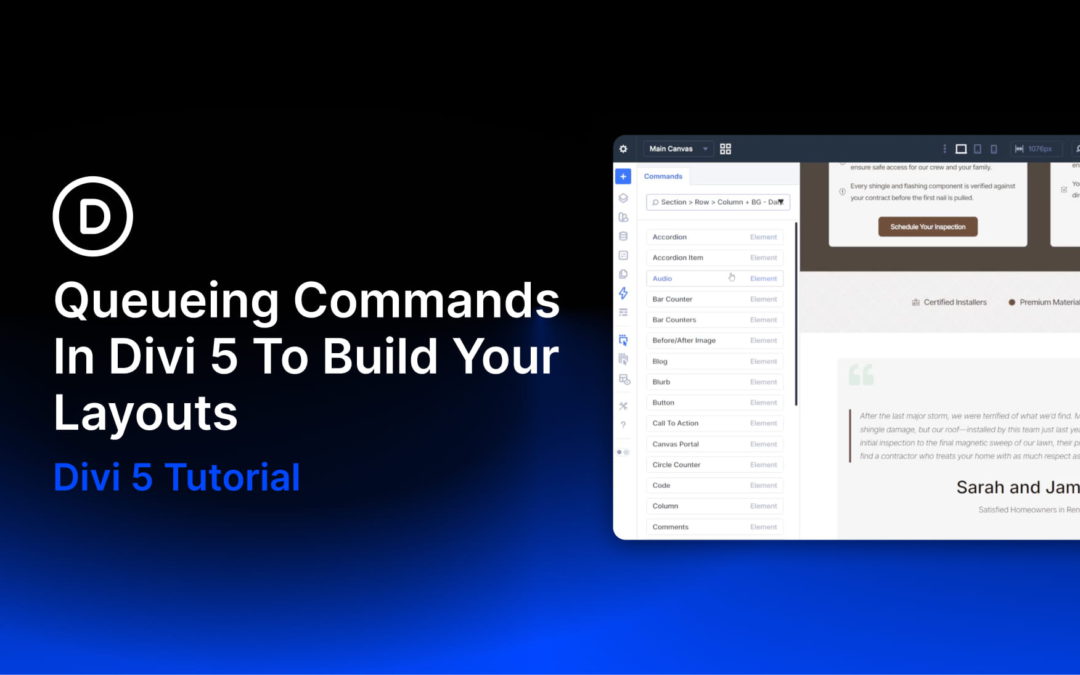
Building a new section on a site with an established design system is where Divi 5‘s Command Center becomes especially useful. On a site without presets, creating a new section usually means two separate tasks. First, you build the structure. Then you open the settings panel and apply the design choices manually.
On a site with a well-defined design system, many of those decisions are already saved as presets. The Command Center’s queueing system lets you build the structure and attach presets as you go. You can do it all from the keyboard. Instead of creating each element and assigning presets one by one, you can queue the entire section and run it in a single pass.
In this tutorial, we’ll add a dark CTA section to the bottom of a homepage. It will use a centered single-column layout with a heading, supporting text, and a button. The section will use existing presets and be built using a single command queue.
Receive the latest WordPress, Divi, SEO and design news in your inbox for FREE from Web Design Solutions Unleashed.
We use cookies to ensure that we give you the best experience on our Web site. If you continue to use this site we will assume that you are happy with it.