In Part 2, we walked through the major parts of the Divi 5 interface. You now know where the main tools live and how the builder is organized. In Part 3, we’ll focus on a small but important part of that interface: Design Variables.
Design Variables are named, reusable values that can be referenced by modules, presets, templates, and other parts of your Divi 5 design system. Instead of storing one-off values inside individual modules, you define important values once and reuse them across the site. In Divi 5, that includes colors, fonts, numbers, images, text strings, and links.
This matters because every Preset we create in Part 4, every page section we build in Part 5, and every template we construct in Part 8 will reference these variables. Without them, the presets would rely on hardcoded values. As a result, the design system would be harder to update, reuse, and scale.
By the end of this post, our Coworking Space website will have a complete set of Design Variables for typography, colors, spacing, borders, layout dimensions, button styling, form fields, and reusable content. These are the raw ingredients that power everything that comes next.
Welcome back to the Divi 5 Mastery Course. In Part 1, we covered everything you need to prepare before opening the Builder, from installing WordPress and Divi to gathering your brand assets, sitemap, and content for the coworking space website we’ll build together.
Now that you’re prepared, it’s time to step inside the Divi 5 Visual Builder. Divi 5 is now fully released and out of Beta, bringing a completely revamped, modern, high-performance interface.
In this post, we’ll explore every major element of the new interface, focusing on where things live, what they do, and how they work together. By the end, you’ll know exactly where to find what you need so you can design with confidence.
Welcome to the Divi 5 Mastery Course — a hands-on series that takes you from a blank WordPress install to a fully designed, launched website. Over 15 parts, you’ll build a complete site for a coworking business from scratch using Divi 5, learning every major feature along the way.
Here’s what the series covers (we will add links as each part is published):
What To Prepare Before Building Your Divi 5 Website (you’re here)
Exploring Every Aspect Of The Divi 5 Interface
Creating A Divi 5 Global Design System With Design Variables
Mastering Divi 5 Presets For Faster, More Consistent Web Design
Building A Divi 5 Homepage From Scratch
Building A Custom Header And Navigation In Divi 5
Building A Custom Footer In Divi 5
Using Divi 5 Theme Builder To Create Global Website Templates
Building The Core Inner Pages Of Your Divi 5 Website
Mastering Flexbox In Divi 5
Mastering CSS Grid In Divi 5
Making Your Divi 5 Website Fully Responsive
Creating Interactive Off-Canvas Elements (Popups & More)
Mastering The Divi 5 Loop Builder
Divi 5 Power User Workflow
Auditing, Polishing, And Launching Your Divi 5 Website
No imported templates. No pre-built layouts. You’ll do the designing yourself. By the end, you’ll understand not just how to use Divi, but how a real build comes together from start to finish. Each part builds on the last, so following along in order gives you the full picture. That said, if you already know your way around and want to jump to a specific topic, each part includes enough context for you to self-guide.
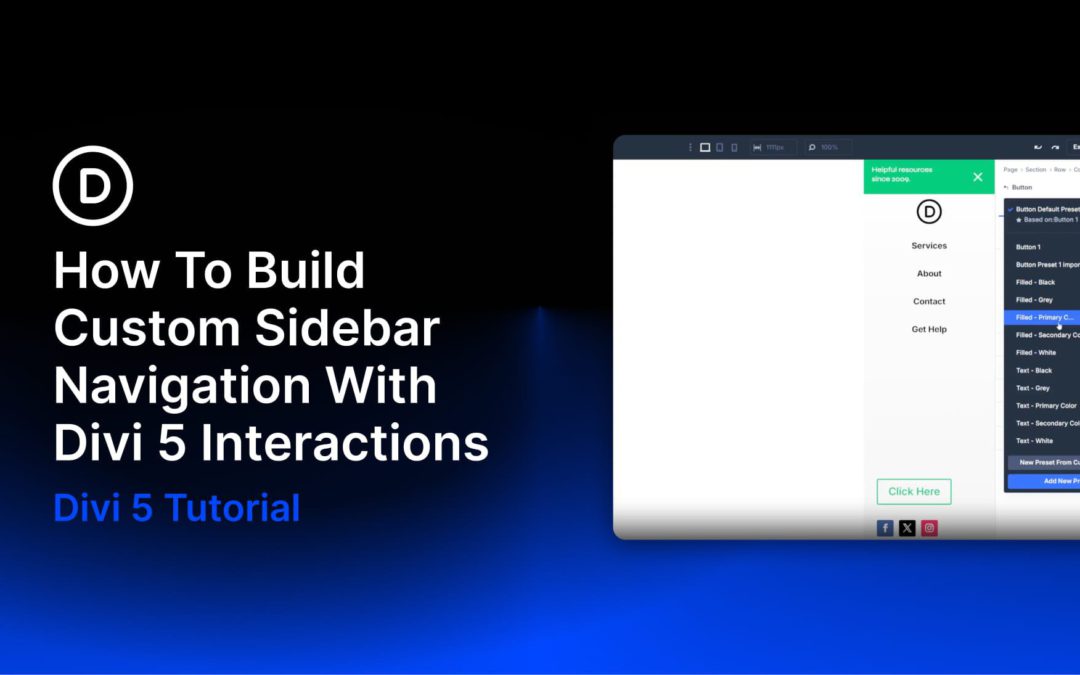
Side navigation is a familiar pattern because it keeps the main header simple while still making a full menu available when needed. It is common on mobile, but it can also work well on desktop when a design calls for a minimal header with a logo and hamburger icon.
Divi 5 brings a few native features together to make this kind of layout possible. The Theme Builder handles the global header, a global Canvas stores the off-canvas sidebar, and Interactions control the open and close behavior between them.
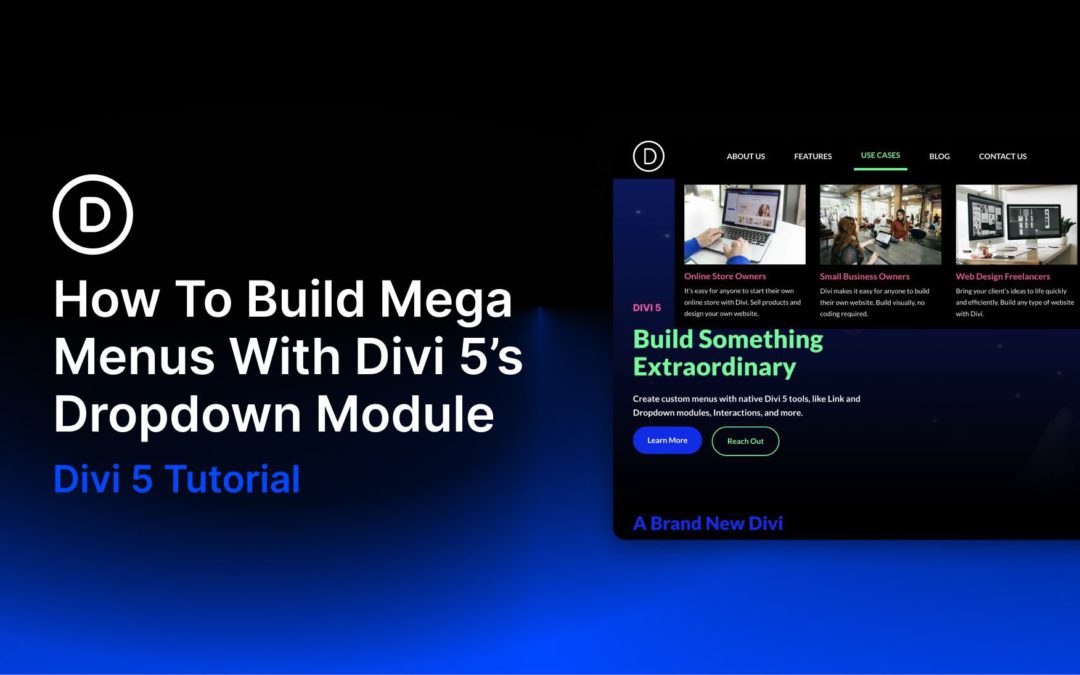
Divi 5 gives you a much more flexible way to build navigation than older Divi workflows. With the Link and Dropdown modules, plus features like Canvases, the Loop Builder, Interactions, and visibility settings, you can create custom dropdowns and mega menus directly inside Divi without relying on third-party plugins or custom code.
In this post, we’ll walk through a step-by-step approach to building a custom mega menu in Divi 5, including a separate mobile version.
What Is The Dropdown Module?
The Dropdown module in Divi 5 is a dedicated container for building dropdown menus and mega menus. When you place a Dropdown module inside a parent element, such as a Link module, Divi connects the dropdown’s behavior to that parent element. That means the Dropdown module can work as part of a navigation item instead of feeling like a separate floating layout.
Receive the latest WordPress, Divi, SEO and design news in your inbox for FREE from Web Design Solutions Unleashed.
We use cookies to ensure that we give you the best experience on our Web site. If you continue to use this site we will assume that you are happy with it.