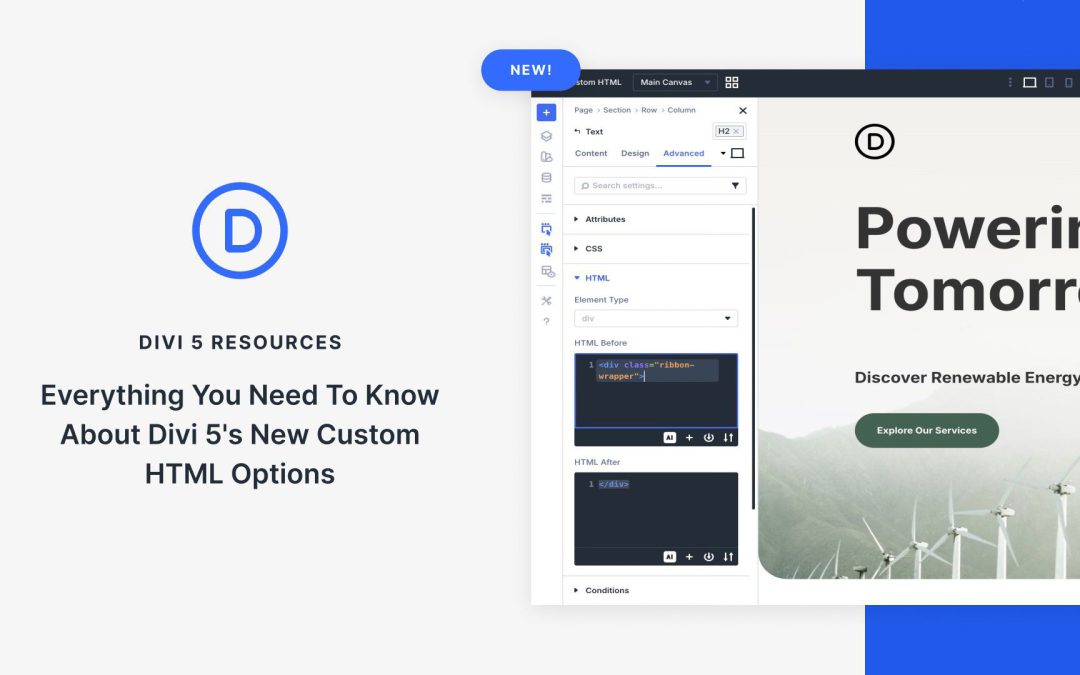
Divi 5 brings powerful new tools for those who want deeper control over their page markup without leaving the Visual Builder. The latest addition, Semantic Element and Custom HTML Wrappers, lets you assign meaningful semantic tags to any element for better accessibility and SEO. At the same time, the dedicated Custom HTML fields add two precise code areas called HTML Before and HTML After.
These fields let you insert valid HTML directly around any Divi element, acting like two built-in Code Modules that attach exactly where you need them. This unlocks advanced customization, such as creating custom parent wrappers in areas a standalone Code Module can’t reach.
In this post, we’ll walk through everything you need to know about Custom HTML wrappers, including where to find them, how they work, and a step-by-step example to get you started right away.
Custom HTML In Divi 5
While Semantic Elements help define what your content is, Divi 5’s Custom HTML wrappers give you the power to add arbitrary markup around it. This feature unlocks advanced customization options directly within the Visual Builder.
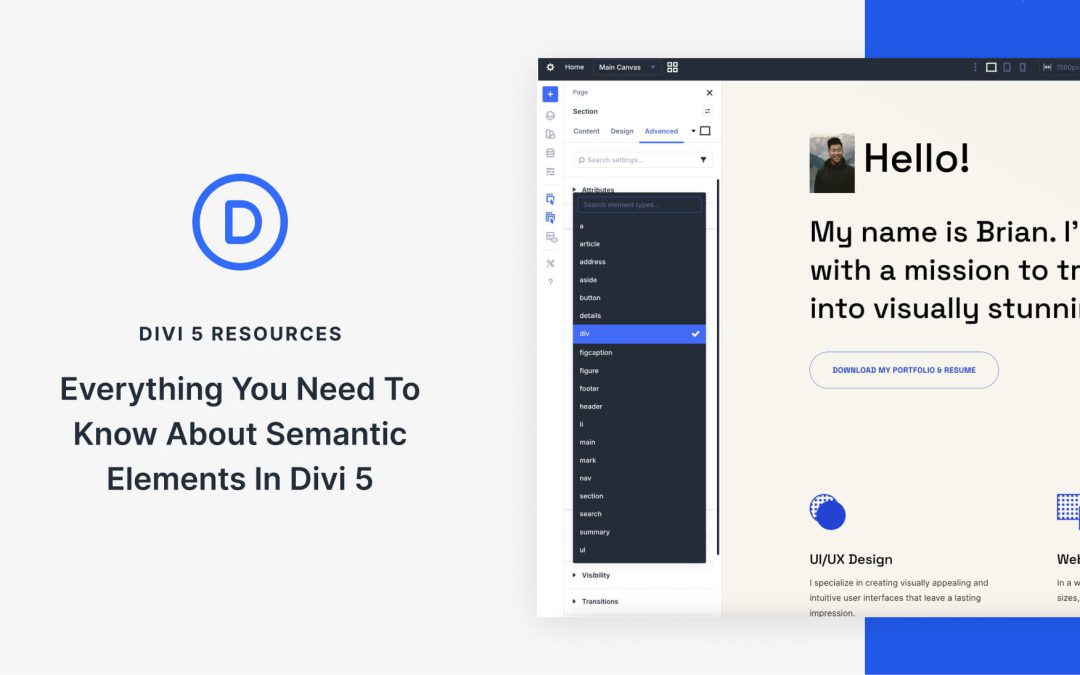
For WordPress users building with Divi 5, it’s now much easier to apply semantic HTML to your layouts, which can improve accessibility, clarify page structure for search engines, and create a better experience for visitors. That’s thanks to a new feature called Semantic Elements.
In this post, we’ll cover the fundamentals of semantic tags and show you how to apply them in Divi 5 step by step, along with practical tips and best practices.
Semantic Elements In Divi 5
Before diving into how Divi 5 implements Semantic Elements, let’s explore what semantic HTML is and why it matters in web development.
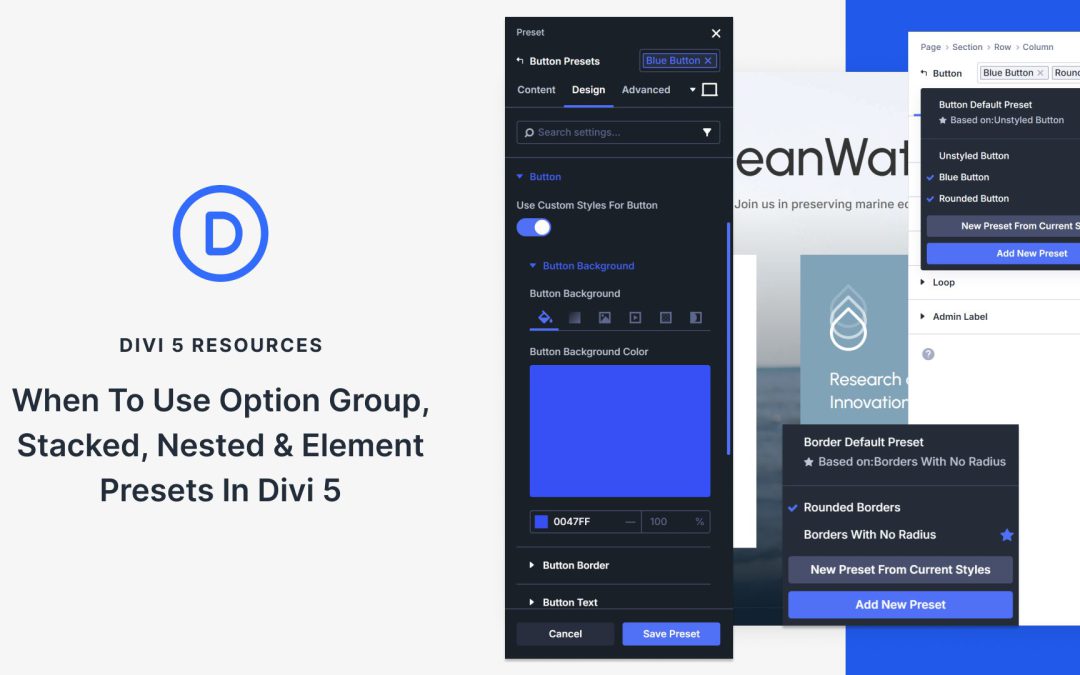
We first introduced two preset types: Element Presets and Option Group Presets. Then we added two additional and specific preset types: Stacked and Nested Presets. Each one focuses on different tasks during your build. When you match the right preset type and method to the job, your workflow gets faster, and your design stays consistent.
In this post, we cover all four types of presets in Divi 5. You’ll learn what each preset type does, how stacking and nesting work, when to use each one, and how they all work together to speed up your builds. Let’s break it down.
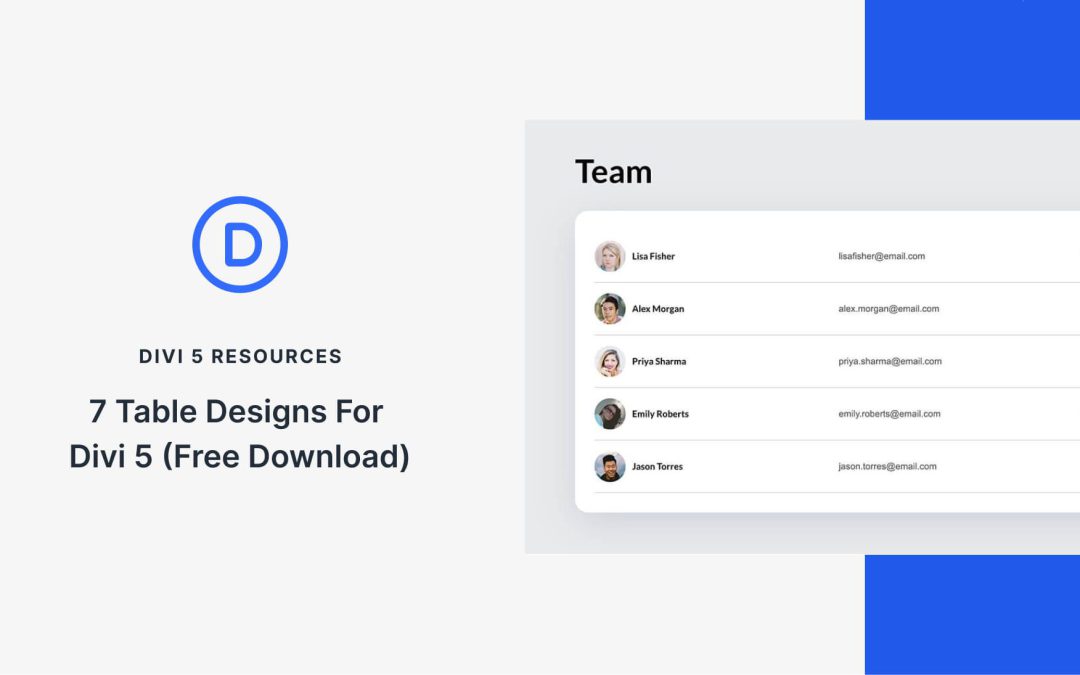
Divi 5 makes it easy to display information in a way that is clean, scannable, and easy to compare. In this free pack, you will find 7 Styled Tables, designed for pricing comparisons, feature lists, schedules, specs, and other data-heavy content. Drop one onto any page, swap the text, and you are ready to go. No extra setup required.
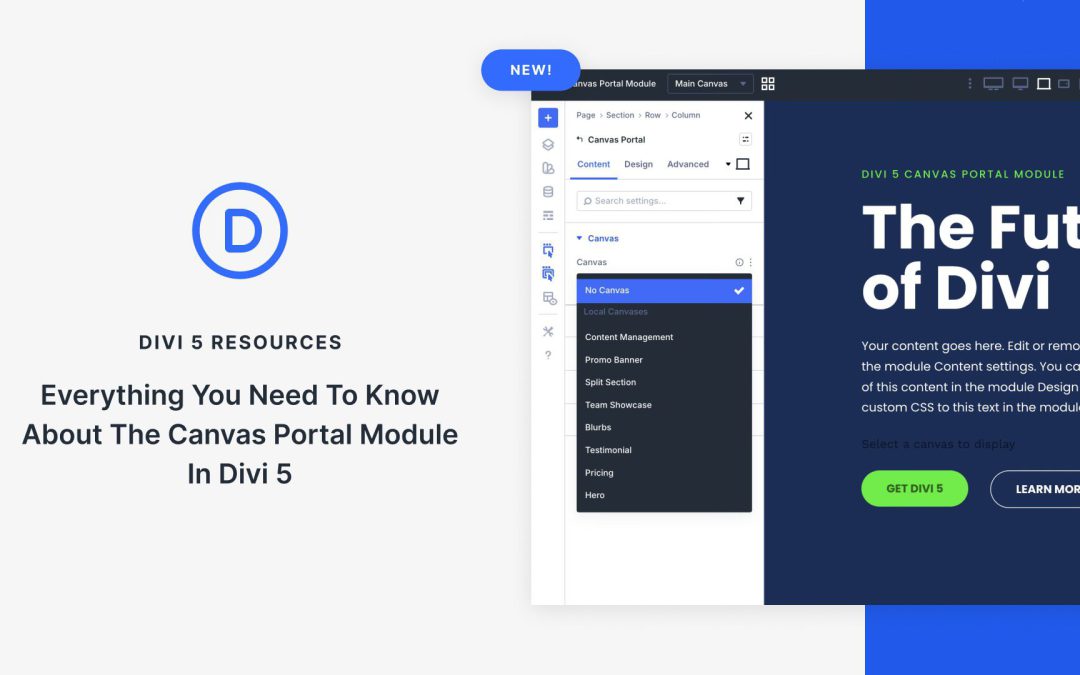
In modern web design, off-canvas design elements such as mega menus, slide-in sidebars, and interactive pop-ups are essential for creating engaging, user-friendly experiences without overwhelming the main layout. Divi 5’s Canvas system is a powerful new feature that lets you create off-canvas designs, manage them with ease, and place them anywhere in your layouts via the Canvas Portal Module.
In this post, we’ll cover what the Canvas Portal Module is, how to use it, and its key benefits to help you master this new feature in Divi 5.
What Are Divi 5 Canvases?
Divi 5 Canvases introduce separate, detached workspaces within the Visual Builder, completely detached from your main page content. These canvases serve as dedicated areas for building and organizing off-canvas elements, keeping your primary layout clean and uncluttered during editing.
Receive the latest WordPress, Divi, SEO and design news in your inbox for FREE from Web Design Solutions Unleashed.
We use cookies to ensure that we give you the best experience on our Web site. If you continue to use this site we will assume that you are happy with it.