Presets are how you stop rebuilding the same design choices over and over in Divi 5. Once you’ve defined your buttons, text styles, or card layouts, the real advantage is being able to move those decisions into new projects instead of starting from zero.
Divi 5 lets you export presets and import them into another site, so your preset library can travel with you. In this post, we’ll export a set of presets, import them into a new project, and look at what transfers cleanly, and what still depends on the setup of the receiving site.
What Are Presets In Divi 5?
Presets in Divi 5 are saved style settings you can reuse on multiple elements. You create a preset once and apply it multiple times, so you don’t have to style the same thing from scratch again. When you update a preset, every module using it updates too. And since presets are organized by module and option group, a Button preset affects only Button Modules, and a text-related preset affects text-based styling options.
Design systems cut down the repeated work in website design. They give you a predefined set of design decisions for color palettes, spacing scales, typography, and more. Divi 5 introduced Design Variables in April 2025, letting you define these values globally.
If you’re a web designer or you run multiple sites, you know the pain of setting up the basics for every new project. Design Variables shine even more when you can reuse them across sites.
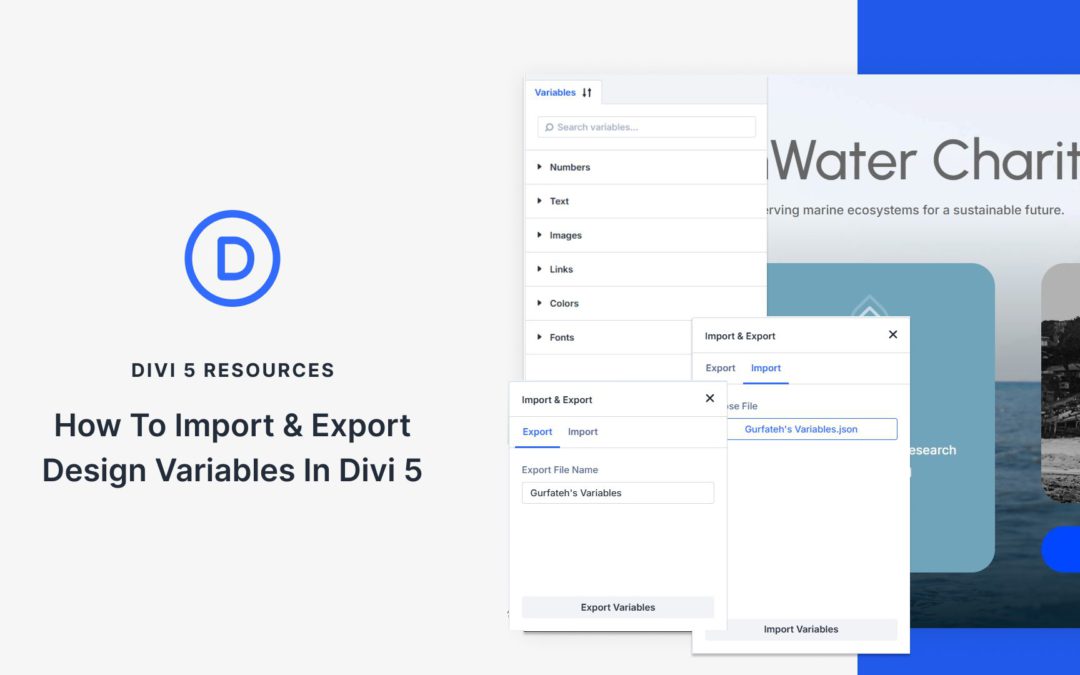
So, we recently introduced import and export for Presets and Design Variables, making it easy to transfer your design system between sites in minutes. Set up your design system once, then use it across every project. Here’s how it works.
Your site is full of things people can click. Menus, buttons, icons, banners, and form submits. They can look identical, but the HTML underneath tells browsers, screen readers, and search engines what each element actually is.
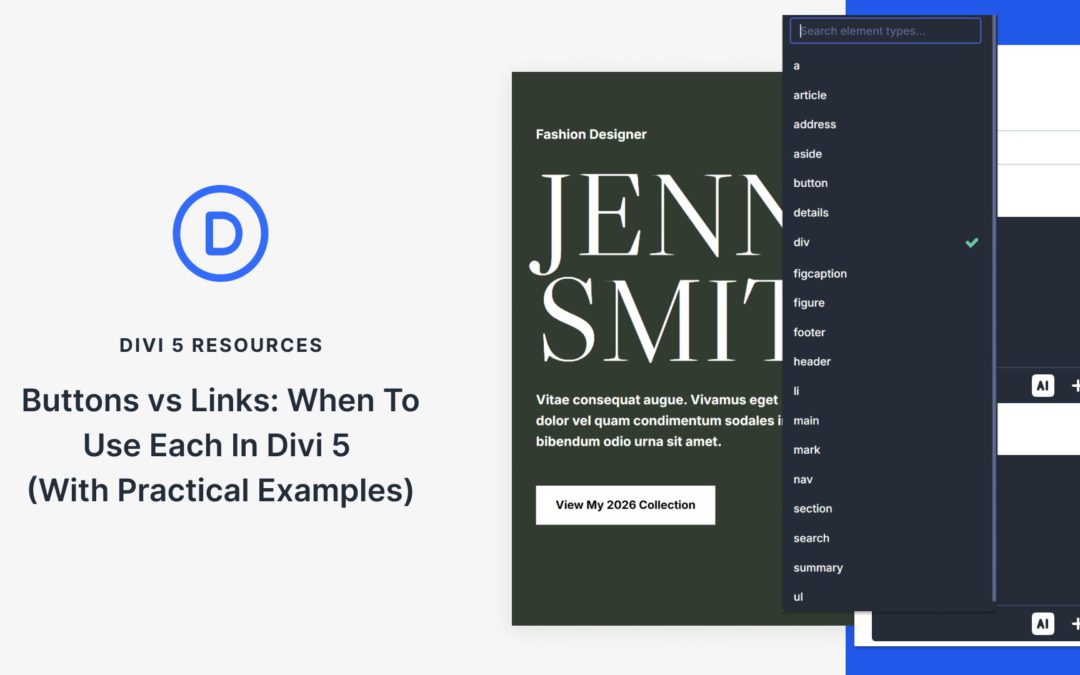
With Divi 5, you can control that meaning directly in the builder using Semantic Elements and Custom Attributes. In this post, you will learn the practical rule for choosing links vs buttons, plus real Divi 5 examples you can copy into your own layouts.
Buttons vs Links: The Difference Explained
Links and buttons can look the same, but they do different jobs in your code.
A link uses the <a> tag with an href attribute. It points to a URL. Click it, and you move to a new page, a different section, or an external site. A button uses the <button> tag for in-page actions. You can also apply role=”button” to a non-button element, but then it must be focusable and support keyboard activation so it behaves like a real button. Click it, and something happens right where you are: a form submits, a modal opens, content toggles, a menu appears.
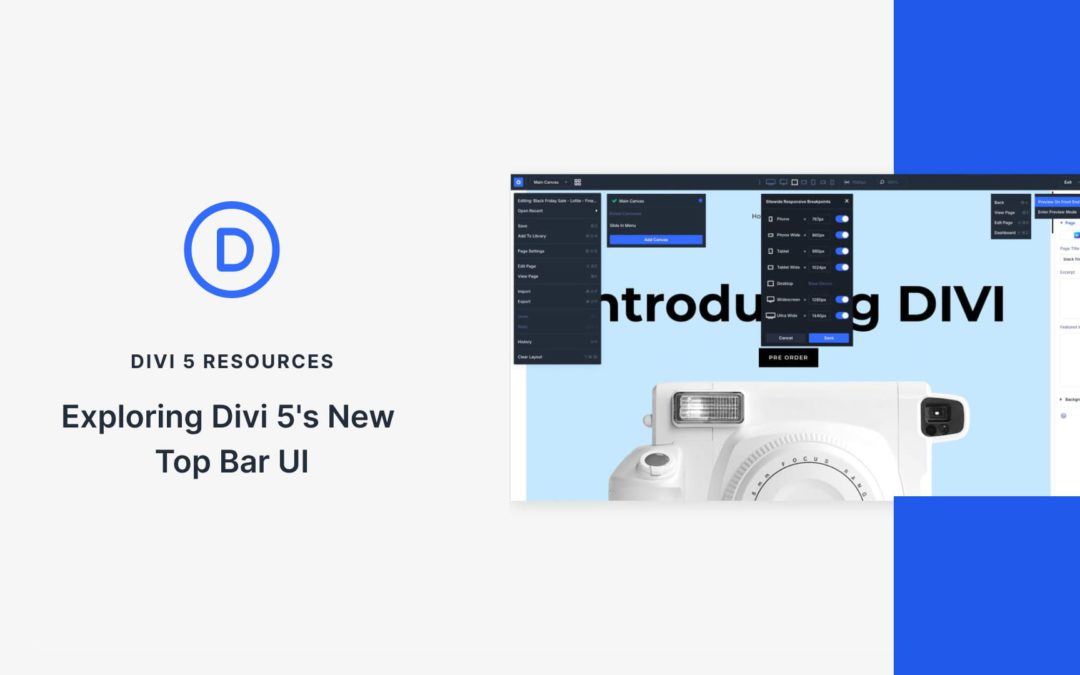
The top navigation bar sits at the center of everything you do in Divi. So even small changes to how it’s organized can shift the entire editing experience. As Divi 5 brought in more tools and shortcuts, the top bar started carrying too much at once. Finding something as simple as the preview button took more attention than it should have.
This update reorganizes the top bar to fix that. We’ll walk you through what changed, where everything lives now, and how it fits into your editing workflow.
Off canvas menus appear everywhere on the web, but building one that works smoothly on desktop often means fighting with custom CSS or patching together mega-menu workarounds. Divi 5 handles this differently with Canvases and Interactions.
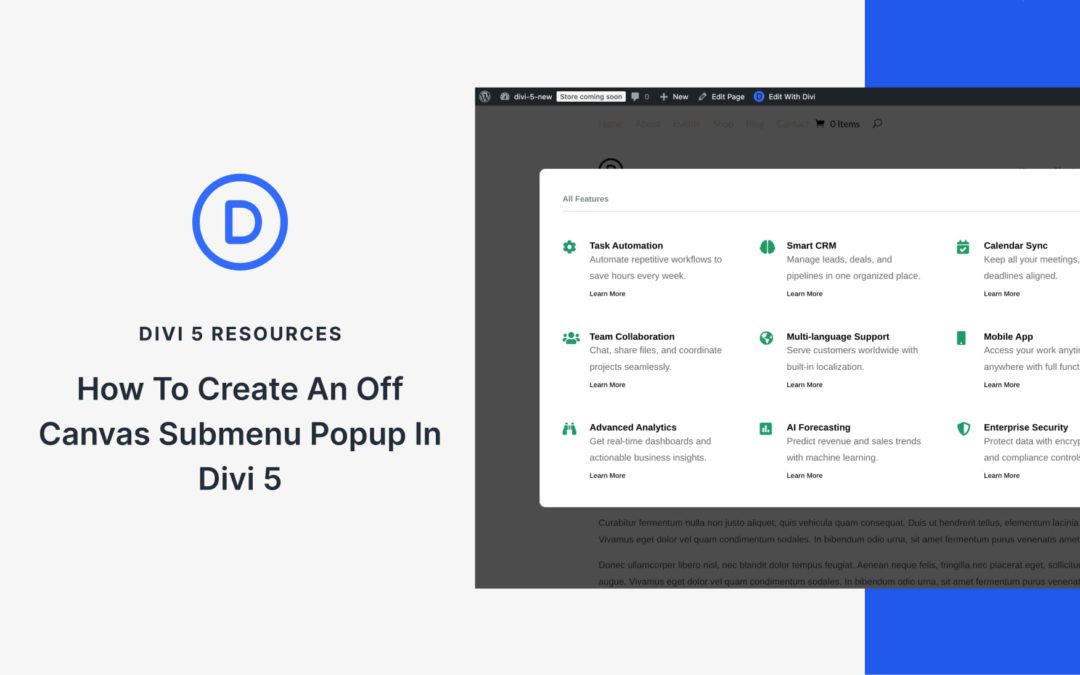
We’ll build a global off canvas services menu triggered from a Theme Builder header template. The menu sits in its own canvas, completely separate from your page layout, and stays fixed while visitors scroll. On mobile, it gets a max-height and internal scroll so everything stays accessible on smaller screens.
What Are Canvases In Divi 5?
A canvas in Divi 5 is a separate workspace that exists outside your main page layout. Your page content lives in the main builder area, but canvases operate independently and stay hidden until triggered.
Think of them as dedicated containers for interface elements that only appear when needed. You build off canvas menus, slide-in panels, popups, or drawers inside a canvas, and they wait in the background until a button click or interaction pulls them into view. The page doesn’t register their presence until that moment.
Receive the latest WordPress, Divi, SEO and design news in your inbox for FREE from Web Design Solutions Unleashed.
We use cookies to ensure that we give you the best experience on our Web site. If you continue to use this site we will assume that you are happy with it.