Motion grabs attention much better than static images. Many people avoid adding animated graphics because they think it means installing lots of extra plugins, downloading big files that slow things down, or learning code.
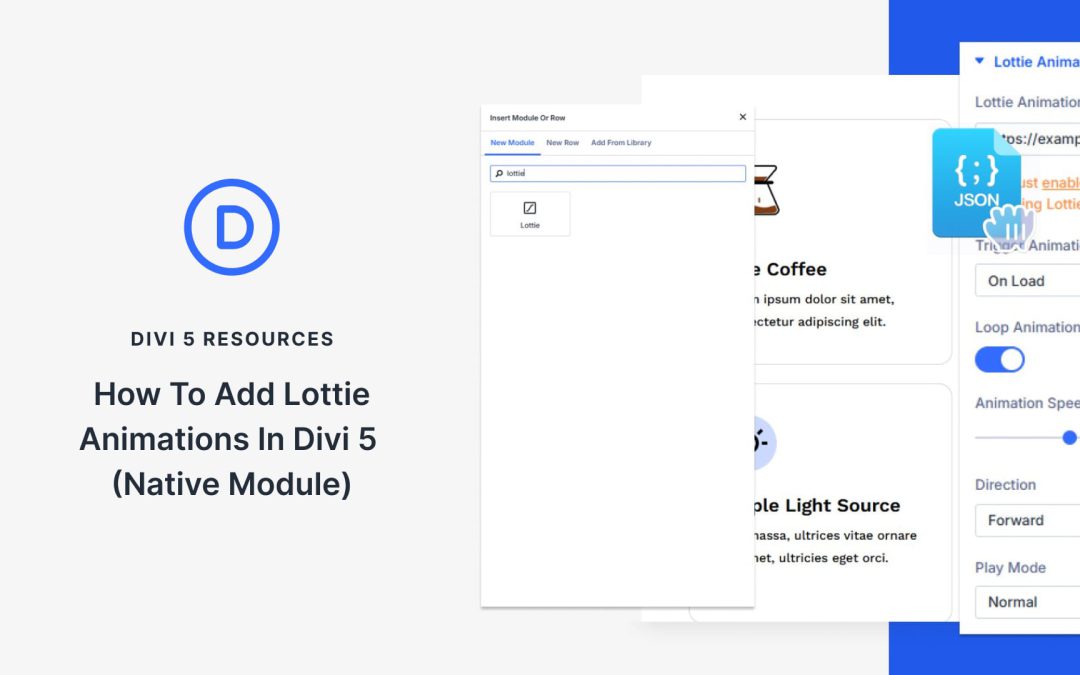
Lottie animations are different. They stay sharp at any size, load fast, and barely occupy space. We’ll walk you through adding them straight into Divi 5 using the now built-in Lottie Module.
What Are Lottie Animations?
Lottie animations are JavaScript Object Notation (JSON) files that store motion graphics as code instead of pixels. They’re often many times smaller than comparable GIFs (commonly 5–10× smaller), while staying crisp. A typical GIF that might be 5MB as a video becomes 50KB as a Lottie file.
A small icon animation scales perfectly to fill your entire screen. GIFs save each frame as a separate image. Lottie files tell your browser how to draw the animation. You can also change colors, speed, and timing by editing the JSON code directly.
Among the many new builder features, Divi 5 also implements several efficiency improvements. These include improvements to the UI and those that help you with a smoother workflow. Not only is Divi faster (from a technical standpoint), but it is also faster to use.
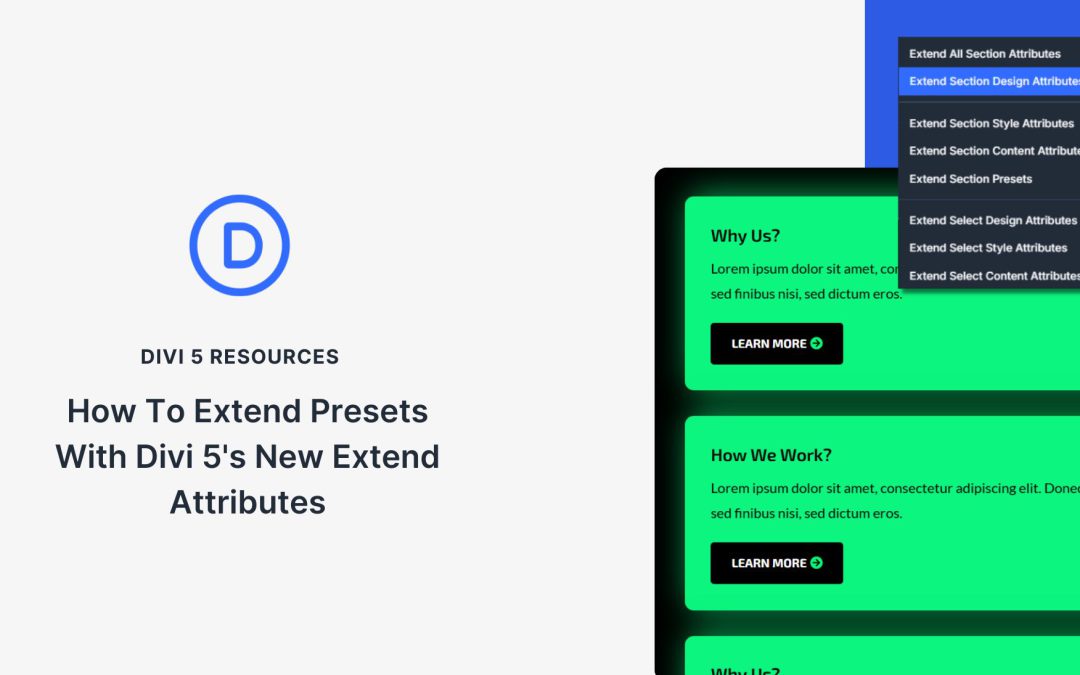
Extend Attributes is one of our favorite efficiency features. It started as Extend Styles in Divi 4 and extended only element-level styles to other elements. Extend Attributes makes this initial feature 10 times more powerful. In this post, we’ll show you how to extend presets in Divi 5, so you can make even more targeted changes throughout your page design.
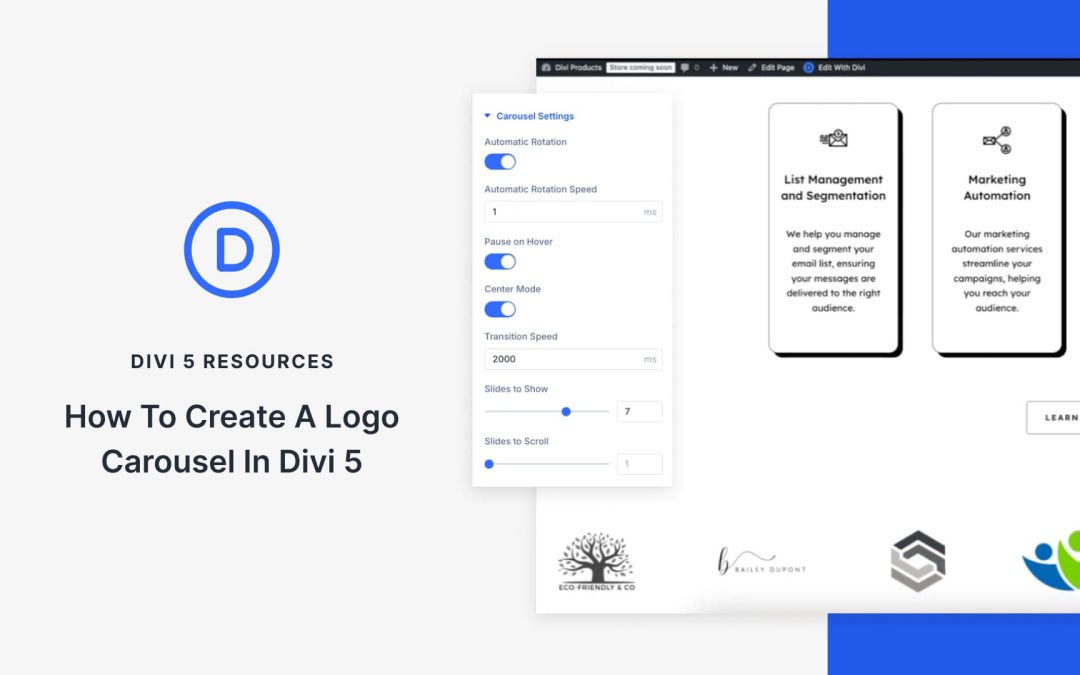
With Divi 5’s Group Carousel Module, you can build a logo carousel right inside the builder without relying on extra plugins. It’s a simple way to showcase client logos, partner badges, or featured brands in a scrolling strip that feels polished and professional.
In this tutorial, we’ll walk through how to set up and style a moving brand bar in just a few steps.
What Is The Group Carousel Module In Divi 5
The Group Carousel is Divi 5’s module for creating horizontal sliders. It works as a container where you can place multiple modules side by side and scroll through them.
The problem with most animation tools is that they swing from boring to chaotic with no middle ground. Either the effects aren’t visible, or a slight move of the mouse can send elements flying.
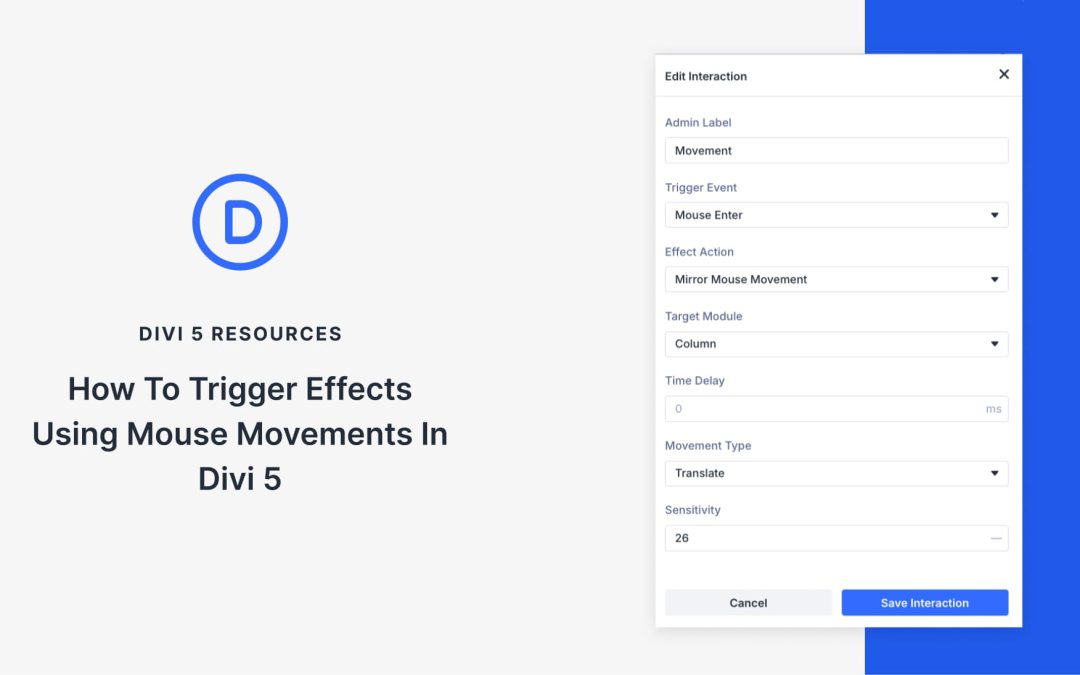
With Divi 5’s Interactions, you get fine-grained control over how elements respond. Its Sensitivity settings let you choose whether the motion is barely noticeable or dramatic, so effects stay smooth, subtle, and professional. In this post, we’ll walk through how to trigger effects using mouse movements in Divi 5.
What Are Interactions In Divi 5
Interactions are connections between what a visitor does and how the page responds. They’re built on three parts:
Trigger: The action that starts it. This could be a click, a mouse entering or leaving an element, the moment something enters the viewport, or the page load.
Effect: The response you want. That might be a card tilting, an image zooming, a banner fading in, or a preset swapping styles.
Target: The element that reacts. It could be the very thing the visitor clicked on, or something completely different somewhere else on the page.
Divi 5 is taking shape, and each step toward a full release packs even more possibilities than the last. Our team is officially in bug-bash mode and making sure what’s currently available is as stable as possible. Even as that hardening continues, we’ve released a few features that continue to show how Divi 5 is built for the future of website building.
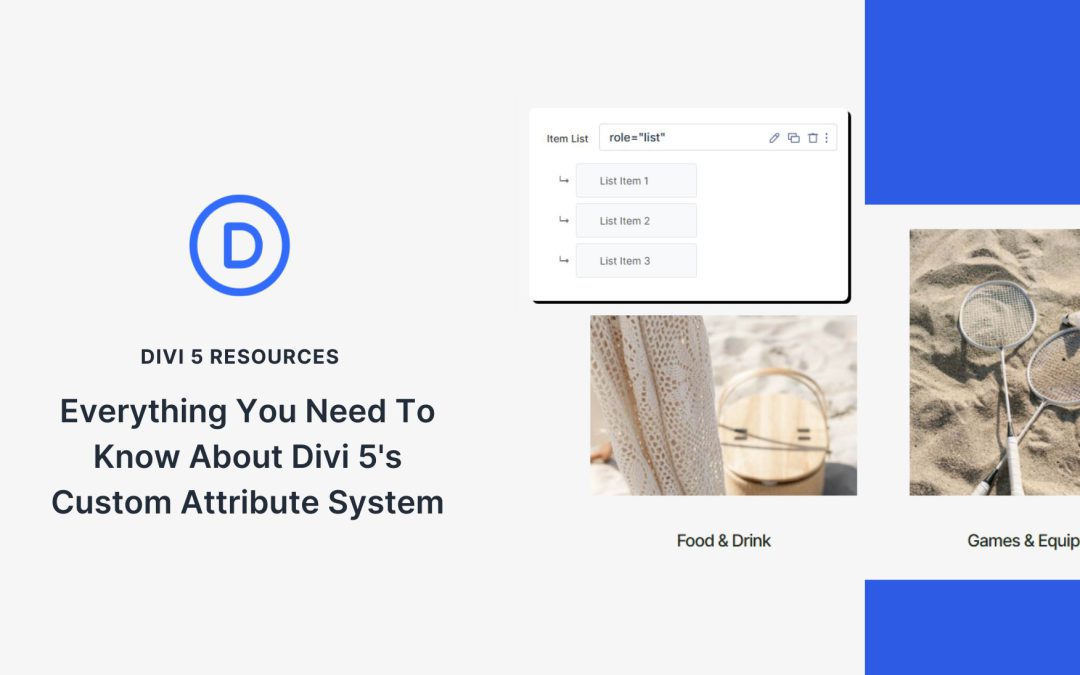
Custom Attributes is one of those features. It might look like a tiny Option Group in the Advanced tab (that’s what it is), but it packs a lot of punch. Instead of only assigning classes and IDs, you can now assign any valid HTML attribute and attach it to the right part of any Module.
If you don’t know what that means, we’ll have some examples and explainers below to clarify. This is an excellent first step in Divi’s improving Accessibility — it only gets better from here.
Custom Attributes For All Divi Elements
It’s important to note that the attributes you can now assign are not Divi-specific. These are HTML attributes that are standard for all websites. Instead of the UI gatekeeping which ones you can apply (and where), this new feature allows you to do what you need to do, on the element (or sub-element) you need to do it on.
The new Attributes Option Group is located exactly where CSS Class and ID used to be. To access it, click on the Module you want to enrich, go to its Advanced tab, and then “Add Attribute”.
Migration note: If you’ve used the legacy Class & ID settings in earlier versions, those values are automatically migrated into the new Attributes group. So if you’re wondering where your classes and IDs went, you’ll find them listed there; no data is lost.
Receive the latest WordPress, Divi, SEO and design news in your inbox for FREE from Web Design Solutions Unleashed.
We use cookies to ensure that we give you the best experience on our Web site. If you continue to use this site we will assume that you are happy with it.