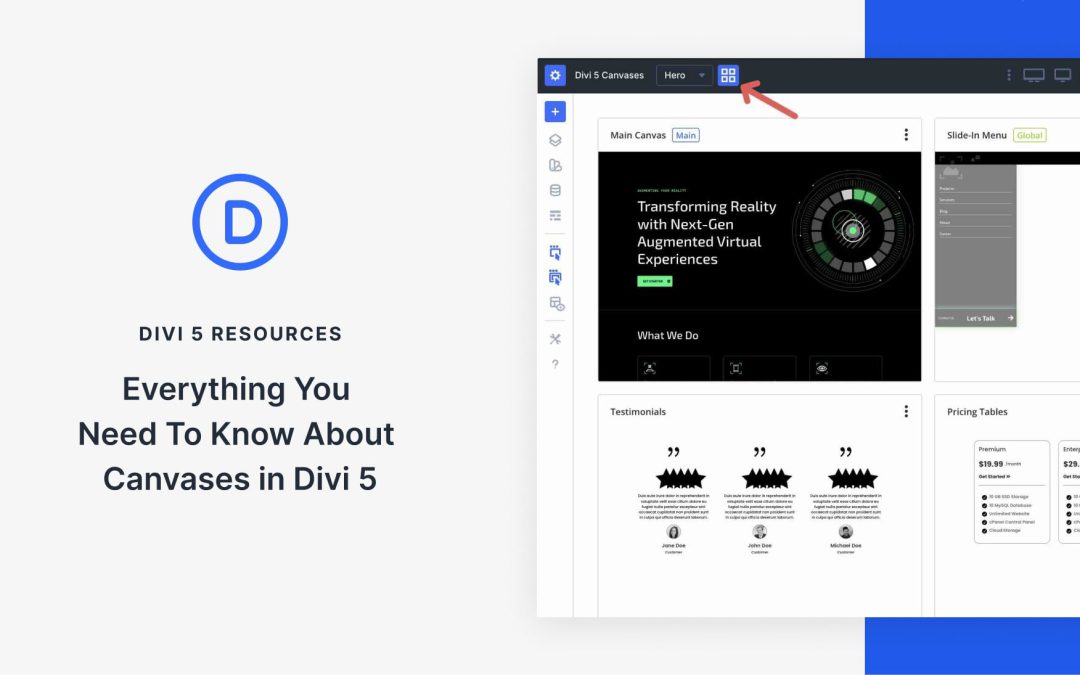
With each update, Divi 5 edges closer to its full release. It’s faster, more stable, and packed with features that set it apart from previous versions. The latest feature of Divi 5 is Divi Canvases, a powerful system for creating off-canvas elements such as menus, pop-ups, sidebars, and other reusable components.
A Canvas is a dedicated, detached workspace separate from your main page or post content. Every Divi page starts with a Main Canvas for your primary layout, but additional canvases provide isolated spaces for off-canvas builds. Canvases allow you to keep off-canvas elements organized, safely duplicate and tweak designs without affecting your live content, and can be global for site-wide components.
In this post, we’ll cover what Canvases are, how to use them, and share tips to unlock their full potential. Let’s get started.
Before CSS Grid in Divi 5, complex layouts often meant extra columns, negative margins, and duplicate sections. It wasn’t clean or flexible, especially when layouts needed to adapt across breakpoints.
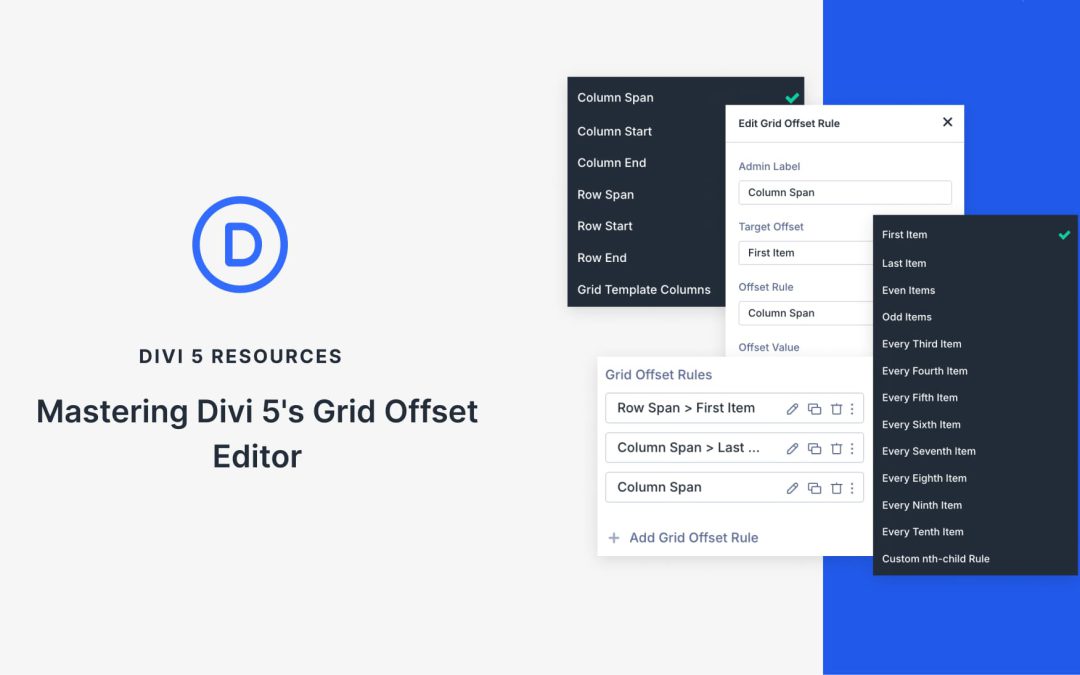
CSS Grid support in Divi 5 introduced a proper two-dimensional layout system that allows you to control structure without relying on workarounds. And within that system, Grid Offset gives you direct control over where an element starts, how far it stretches, and how tall it runs in the grid. You define position in the structure itself, rather than nudging things into place.
Once you understand how start and span work together, you can build flexible layouts without clutter or hacks.
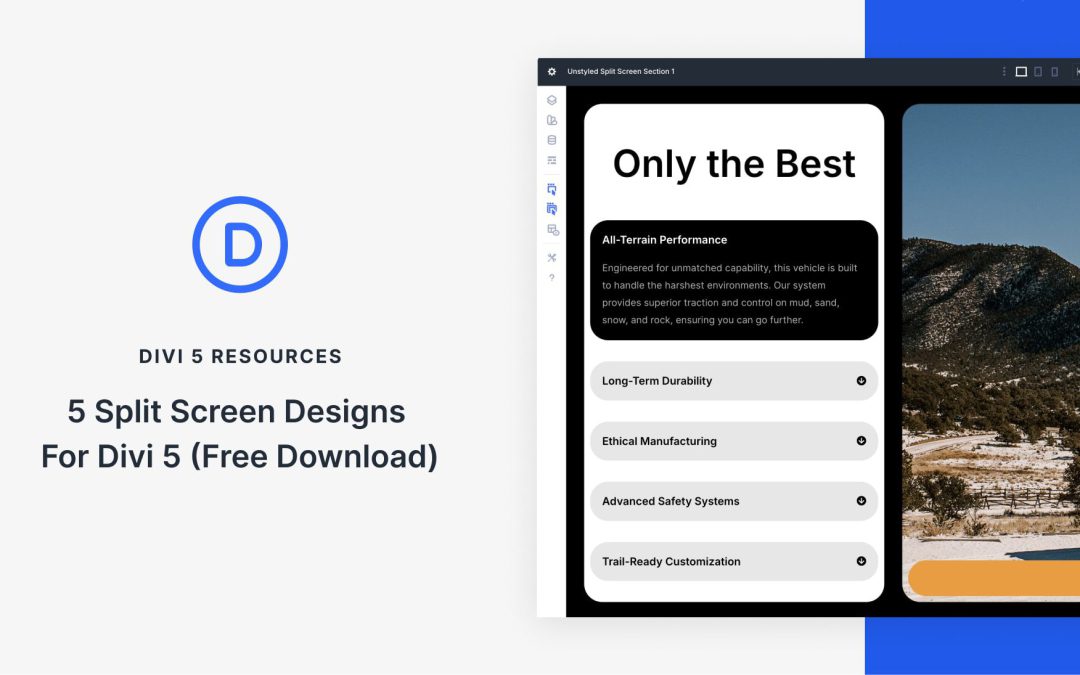
Divi 5 makes it easy to build split screen layouts that feel modern, clear, and professional. In this free pack, you will get 5 Split Screen Sections, each designed to pair content and imagery side by side for immediate visual impact. Drop one onto any page, swap the text and images, and you are ready to go. No extra setup required.
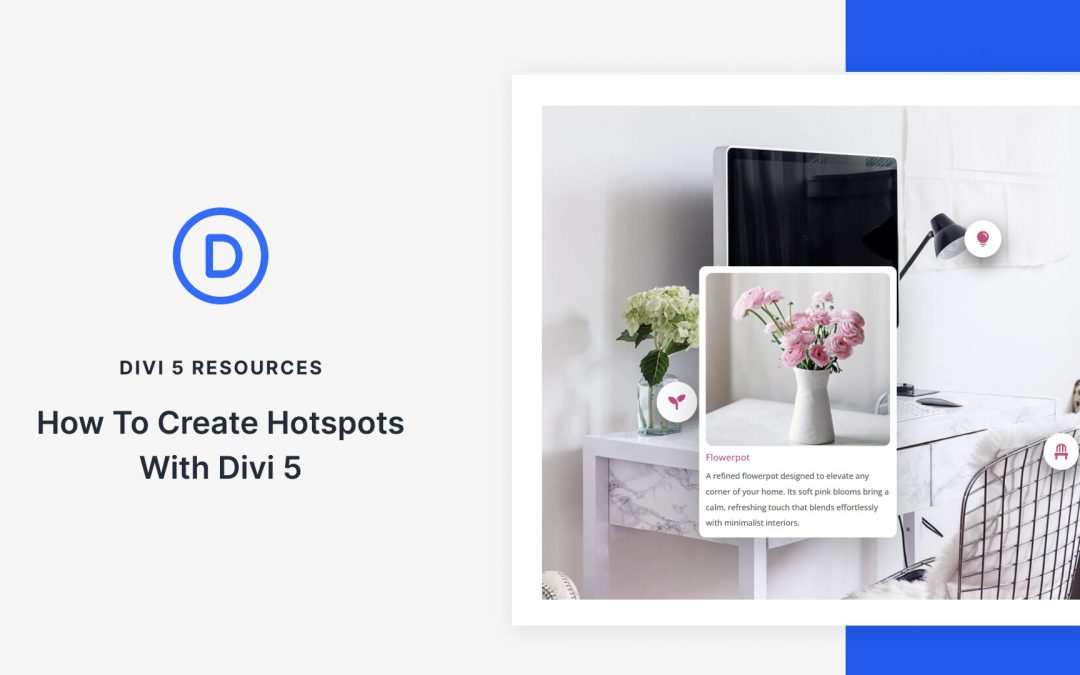
Clickable areas, such as hotspots on your website, can reveal hidden content, trigger pop-ups, or launch animations, transforming static pages into interactive elements that guide people precisely where you want them to go.
Divi 5‘s Interactions handles all of this without requiring any custom coding. We’ll walk through the exact steps to create interactive elements that respond to clicks, hovers, or scrolls. Have a look!
What Are Hotspots?
Hotspots are clickable or hoverable zones that are layered over sections, images, and graphics. You’ll see them on product showcases where each feature gets its own spot. Maps use them to mark locations. Infographics rely on them to break down complex data without cramming everything into one view, among other use cases.
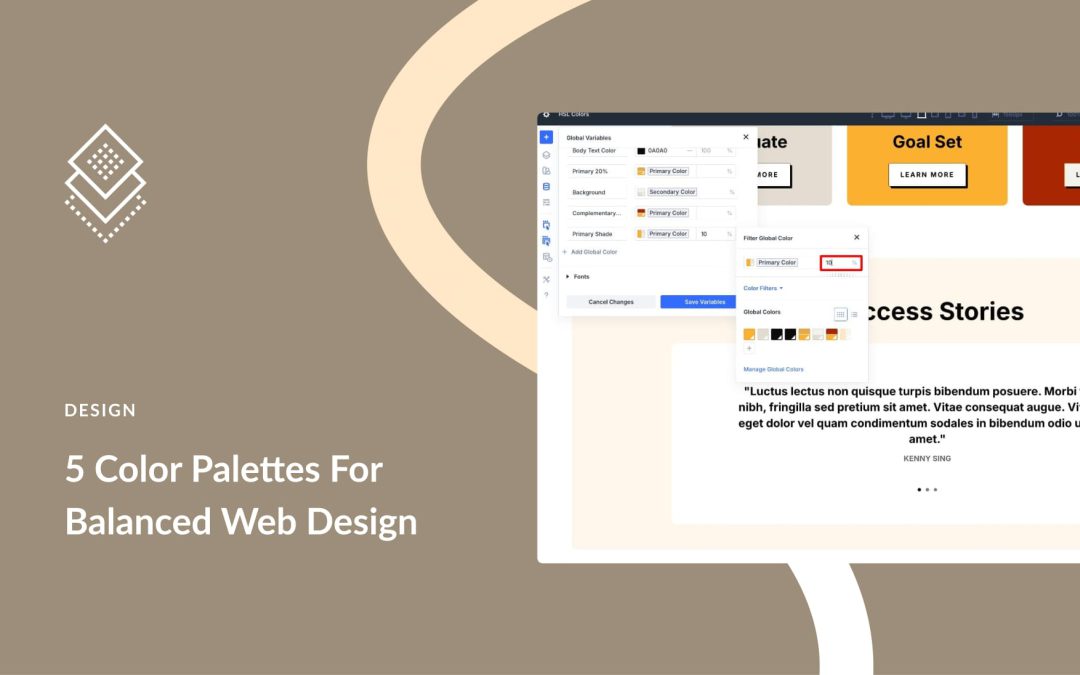
Choosing colors with hex codes means guessing your way through lighter versions, darker buttons, and accessibility fixes. Divi 5 introduces a redesigned Color Picker with HSL controls to its new Color System, allowing you to build and scale palettes with ease. You can create lighter or darker accents by adjusting a single value, store everything as Global Color Variables, and update the entire site from one place.
This guide walks through modern color palettes for 2026 and shows you how to apply them directly inside Divi 5.
Why HSL Is The Better Way To Build Modern Palettes
Most designers still choose colors in HEX, even though they cannot look at #5C7AEA and know how to make a lighter version. You cannot tell how saturated it is. When a client asks for something slightly softer or darker, you end up guessing, nudging sliders, and hoping it looks right.
Receive the latest WordPress, Divi, SEO and design news in your inbox for FREE from Web Design Solutions Unleashed.
We use cookies to ensure that we give you the best experience on our Web site. If you continue to use this site we will assume that you are happy with it.