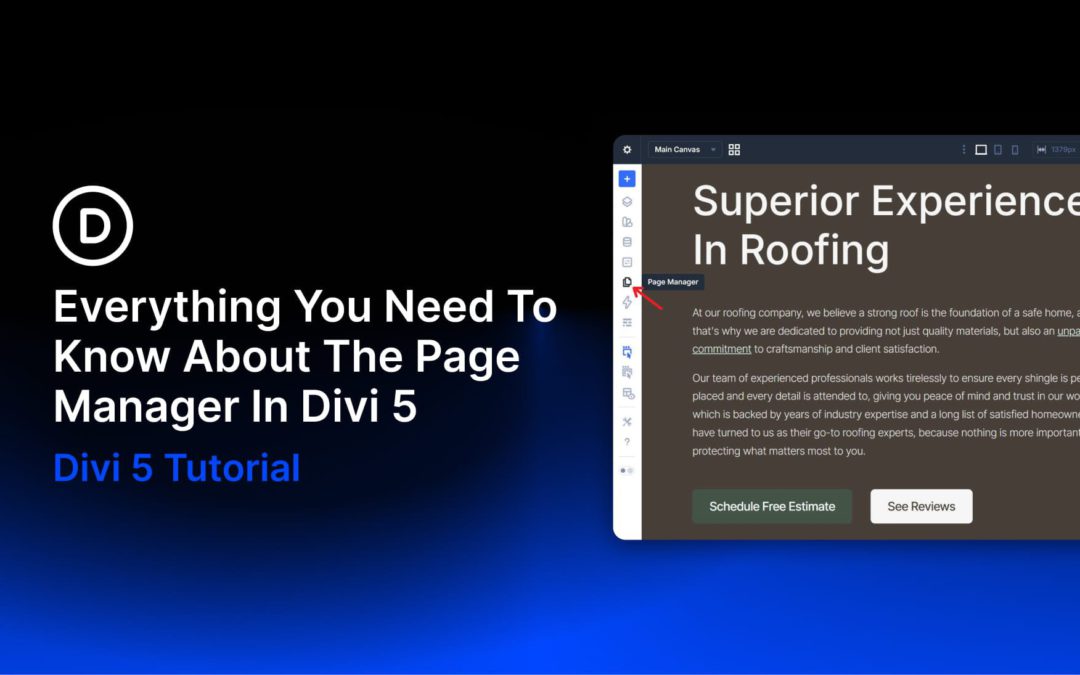
Divi 5 keeps getting better at keeping you on task when you are in the builder. The new Page Manager lets you navigate to any page on your site, create new ones, and manage existing ones — all without touching the WordPress dashboard. It’s a small addition with a noticeable impact on how smoothly a typical editing session flows.
What Is The Divi 5 Page Manager?
Divi 5 is designed to be a complete working environment — not just a tool you dip into to tweak a layout and then leave. The Page Manager is a good example of that philosophy in practice. It lives in the persistent left sidebar as a dedicated icon, and clicking it opens a panel listing every page and custom post type on your site where Divi is the active editor.
Pages built in the WordPress block editor are excluded. The list stays focused on what you can actually edit in Divi, so there’s nothing listed that isn’t worth sorting through.
From the Page Manager, you can open any page directly in the Visual Builder, or create, duplicate, and delete pages without leaving the builder at all. For anyone building or maintaining multi-page sites in Divi, this eliminates the need to visit the WordPress dashboard for these routine tasks. And that is a welcome change because we all know how slow some client dashboards can get.
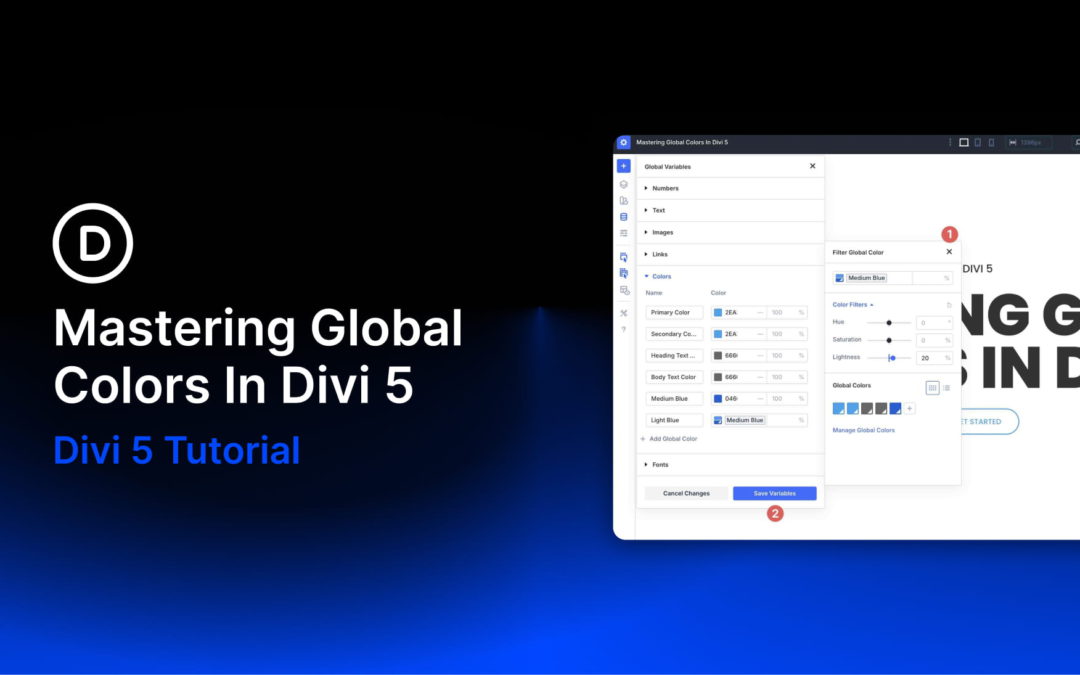
Divi 5 improves color management for WordPress websites by introducing a variable-based color system designed for modern, scalable workflows. At its core is a redesigned Color Picker integrated with Design Variables, leveraging HSL (Hue, Saturation, and Lightness) and Relative Colors to create dynamic, interconnected palettes that update seamlessly across your entire site.
In this post, you’ll learn how to build, manage, and optimize scalable color systems in Divi 5. From understanding HSL basics and setting up global variables to creating nested relative colors and following best practices, we’ll guide you step-by-step to mastering this new feature and elevating your designs to a professional level.
Understanding The Basics: HSL Color Model
Before diving into Divi 5’s Global Colors and Relative Colors features, it’s important to understand the HSL color model, which forms the backbone of this dynamic system. HSL provides an intuitive way to define and manipulate colors, making it perfect for scalable, harmonious palettes.
Building an online store used to mean balancing design and functionality. You wanted a store that looked polished, felt on-brand, and worked smoothly at checkout, but achieving all three often took extra effort.
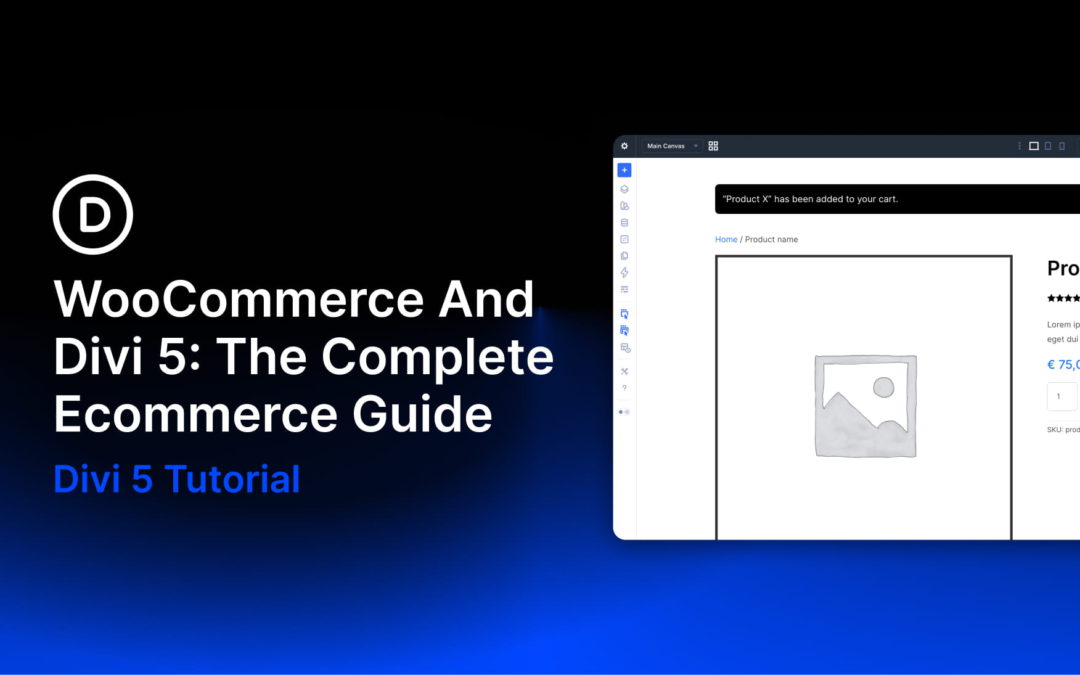
Divi and WooCommerce have long been a strong combination for building online stores, and Divi 5 takes that further. With a rebuilt foundation, modern layout systems, a stronger design workflow, and native WooCommerce modules, you have much more control over how your store looks and works across product, cart, checkout, and archive templates.
That means the design decisions you make early, like your colors, typography, and product card styling, can carry through your store more easily and more consistently. Instead of rebuilding the same patterns over and over, you create the foundation once and reuse it as your store grows.
In this post, we’ll walk you through the whole process, from setting up your store’s visual foundation to building your shop, product, cart, and checkout pages, all the way to going live.
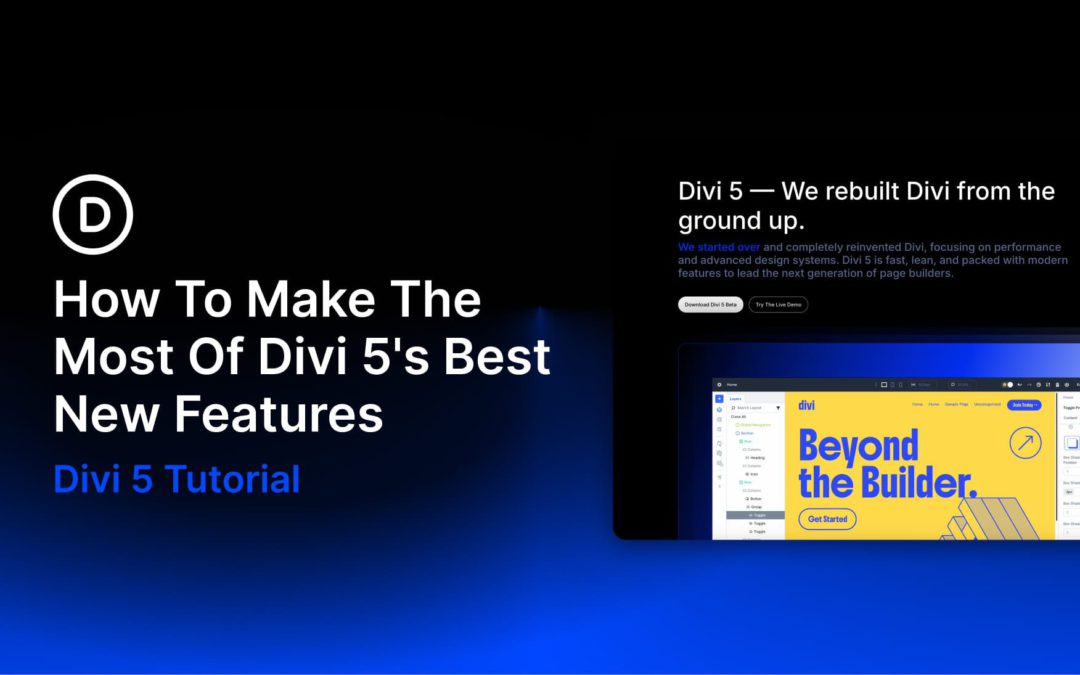
Divi 5 is here, and to make the most of its best new features, it helps to approach the builder a little differently than before. This is not just a faster version of Divi or a visual refresh. It is a rebuild that changes how layout, styling, and structure work together.
Many of Divi 5’s biggest improvements become more useful when you use them as part of a system instead of feature-by-feature. Things like Flexbox, CSS Grid, Nested Rows, Canvases, Design Variables, and Presets are powerful on their own, but they really shine when your workflow starts with structure and builds outward.
In this post, we’ll look at the mindset and workflow shifts that help you get more value from Divi 5’s best new features.
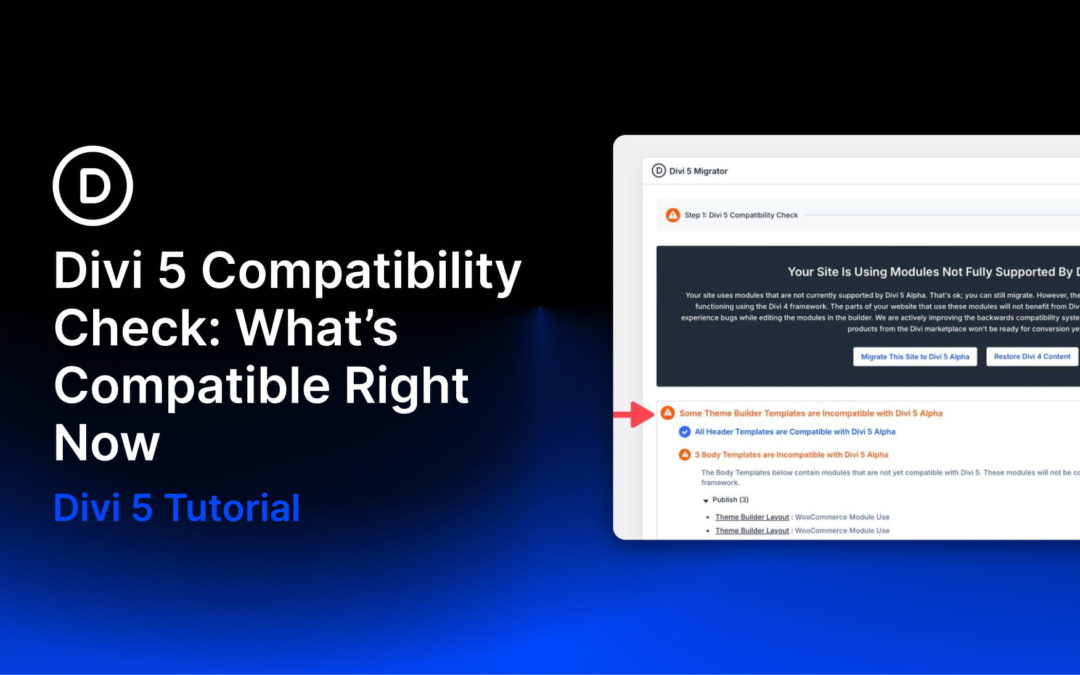
Before migrating your site to Divi 5, you need a clear picture of what will convert natively and what will continue running in backward-compatibility mode. The Divi 5 Migrator includes a built-in compatibility scan that audits your site and produces a detailed report. It identifies which pages, templates, library items, widgets, presets, WooCommerce products, and custom post types are ready for native Divi 5 conversion — and flags anything that still depends on legacy Divi 4 modules or unsupported third-party modules.
The compatibility check does not change your site. It scans, catalogs, and reports back so you can decide whether to migrate now or stay on the Divi 4 update path a little longer. This post walks through the report, explains how to interpret the results, and outlines your options when incompatibilities appear.
One important best practice: run the Migrator before opening existing Divi 4 content in the Divi 5 builder. This preserves the safest migration path and keeps the built-in restore option available if you need to roll back.
How To Access The Compatibility Scan
The compatibility scan is the first step of the Divi 5 Migrator and runs automatically when you open it. In your WordPress Dashboard, go to Divi → Divi 5 Migrator. The scan begins immediately.
Receive the latest WordPress, Divi, SEO and design news in your inbox for FREE from Web Design Solutions Unleashed.
We use cookies to ensure that we give you the best experience on our Web site. If you continue to use this site we will assume that you are happy with it.