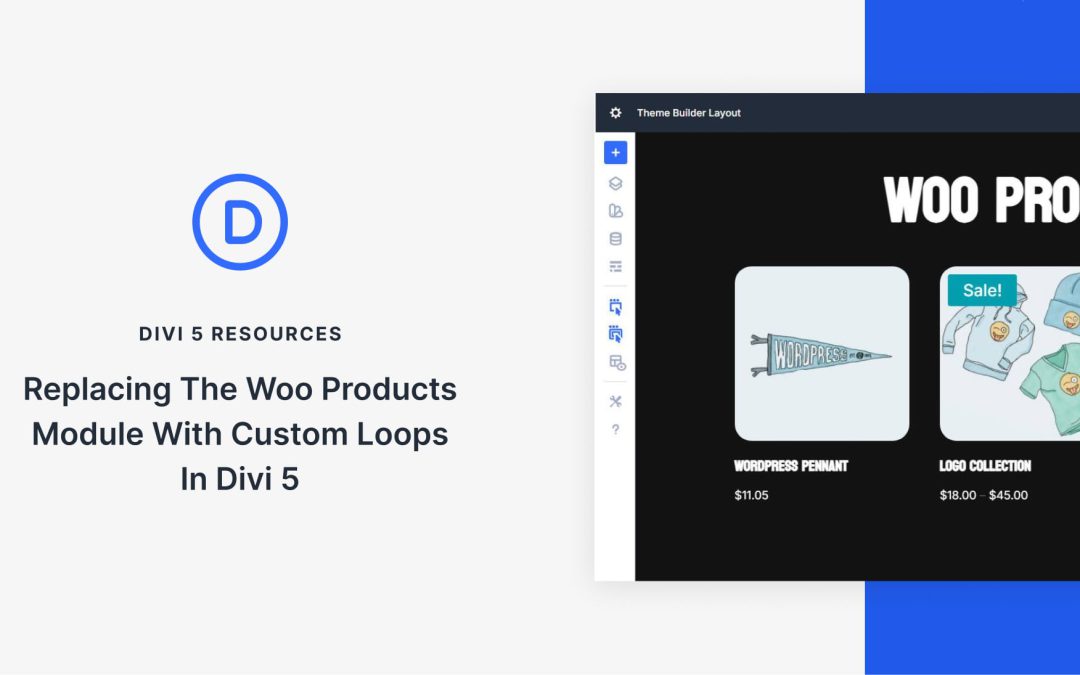
The WooCommerce Products Module is Divi’s built-in solution for displaying products. It automatically connects to your shop and provides quick toggles for product images, titles, prices, ratings, and add-to-cart buttons.
Divi 5‘s new Loop Builder takes a fundamentally different approach to building product features. You design the product card with any modules you choose, and then dynamically feed WooCommerce data into it. Both tools display product listings, yet each excels in different scenarios. You can use either, but the Loop Builder offers far more flexibility, which could help you build a better online store. Let’s compare the two.
Displaying Product Feeds With The WooCommerce Products Module
The WooCommerce Products Module is built for standard ecommerce patterns. It assumes you want recognizable product cards and lets you toggle what shows, keeping setup fast and decisions simple.
Think about how WooCommerce products work. Every product shares certain common elements that make it recognizable as ecommerce content. These shared characteristics include:
Product Title
Product Image
Price
Sale Badge
Star Rating
The Products Module was designed with these traditional elements in mind. Images show what you’re selling. Titles identify the product. Prices tell customers what it costs. The add-to-cart button completes the sale.
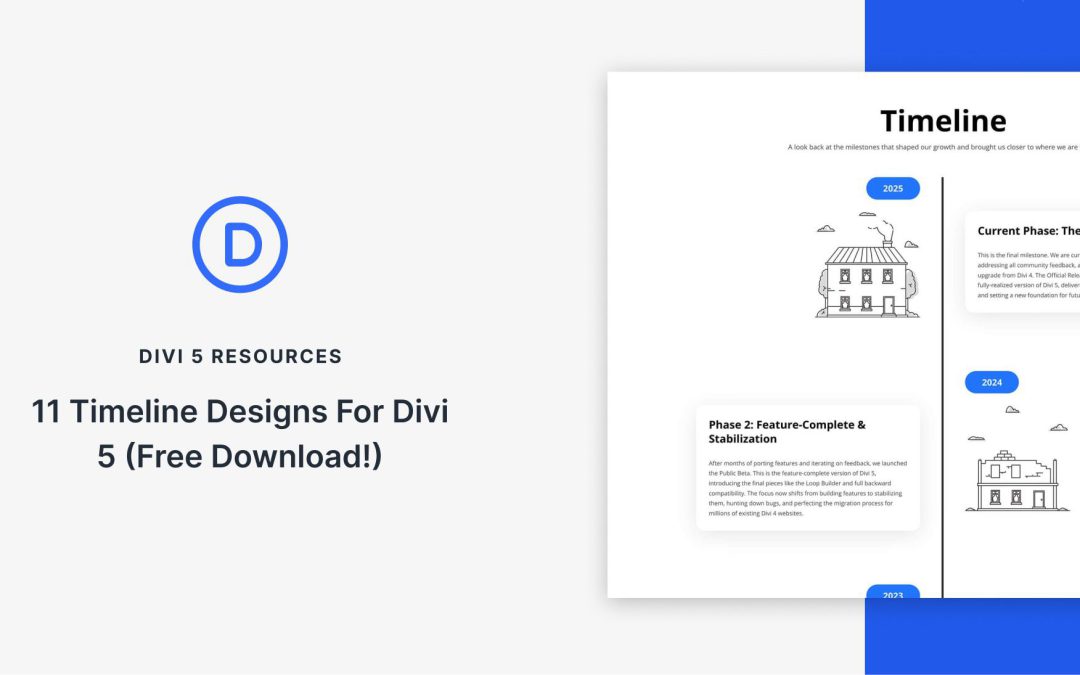
Divi 5 makes it simple to build timelines that are clear, flexible, and easy to reuse. In this free pack, you’ll get 11 unstyled Timeline Sections — each focused on clean structure so you can plug in your own design system, presets, and branding. Drop one onto any page, connect it to your styles, and start telling your story. No extra setup required.
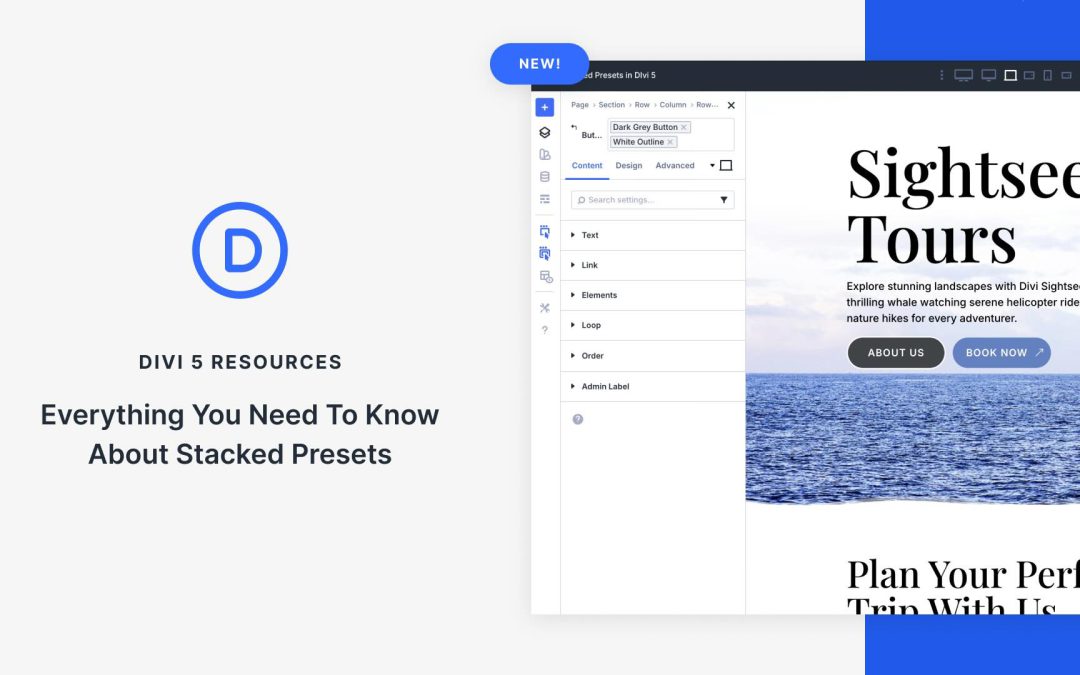
The latest feature of Divi 5 enhances its Preset-based system, allowing users to create reusable styles for use across pages and entire websites. Stacked Presets let you layer multiple Element or Option Group Presets, combining their effects for ultimate design flexibility.
Apply a background gradient from one preset, alignment from another, and spacing from a third, all merged seamlessly into one preset. This new addition to Divi 5’s Preset system provides for faster workflows, more creative freedom, and easier site maintenance.
In this post, we’ll provide a deeper understanding of what Stacked Presets are and how to use them. Let’s get started.
What Are Stacked Presets?
Stacked Presets extend Divi 5‘s Preset system by enabling multiple presets to be applied and layered on a single element or group. Each preset contributes its defined styles, and Divi intelligently merges them into a unified design. For example, you could create Stacked Presets that would control the alignment and colors in Blurb Modules.
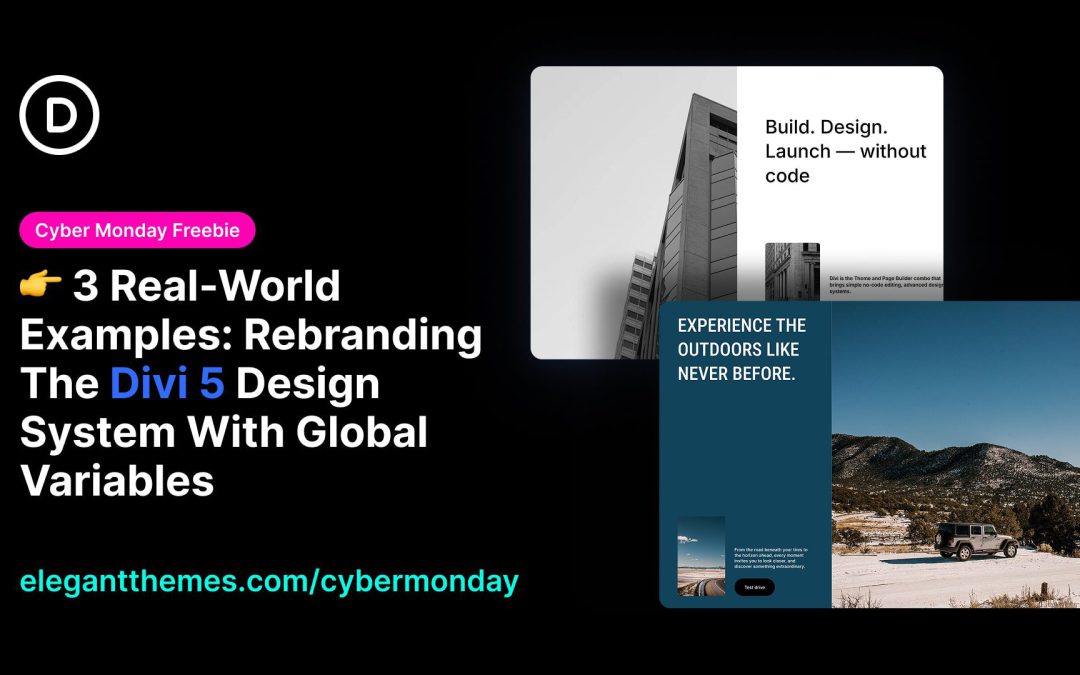
Every website rebuild starts with the same question: how much time will this take? The Divi 5 Design System was designed to get you off and running as quickly as possible. Instead of rebuilding from scratch, you rebrand what already exists. Change colors, fonts, sizes, and presets, and watch an entire website transform.
We’ve chosen to give three detailed examples of how easy it is to completely change the design system to fit your needs. Each Section transformation required fewer than 25 actions. No custom CSS overrides. No element-by-element adjustments. Just deliberate changes to Design Variables and Presets that cascade through an entire site.
This is the second-to-last day of our Cyber Monday sale. If you’ve been evaluating whether Divi delivers the efficiency it promises, these examples provide direct evidence. The Design System isn’t a feature you’ll use occasionally. It’s a complete paradigm for the future of designing with Divi. Whether you choose to customize it or learn from how our designers set up Divi, the Design System for Divi 5 is an invaluable resource you’ll keep coming back to.
The Cyber Monday sale is live and includes the full Divi 5 Design System, one of the most valuable and exclusive Divi 5 freebies. It gives you a ready-made styling foundation with over 430 exports, all built using global presets for buttons, headings, accordions, images, blurbs, and beyond. Everything is already connected across every page and section.
Once imported into your library, a single preset edit updates dozens of modules at once. This post walks you through how the system works, where to find the presets, and how to use them for building and restyling layouts quickly and consistently.
What Is The Divi 5 Design System?
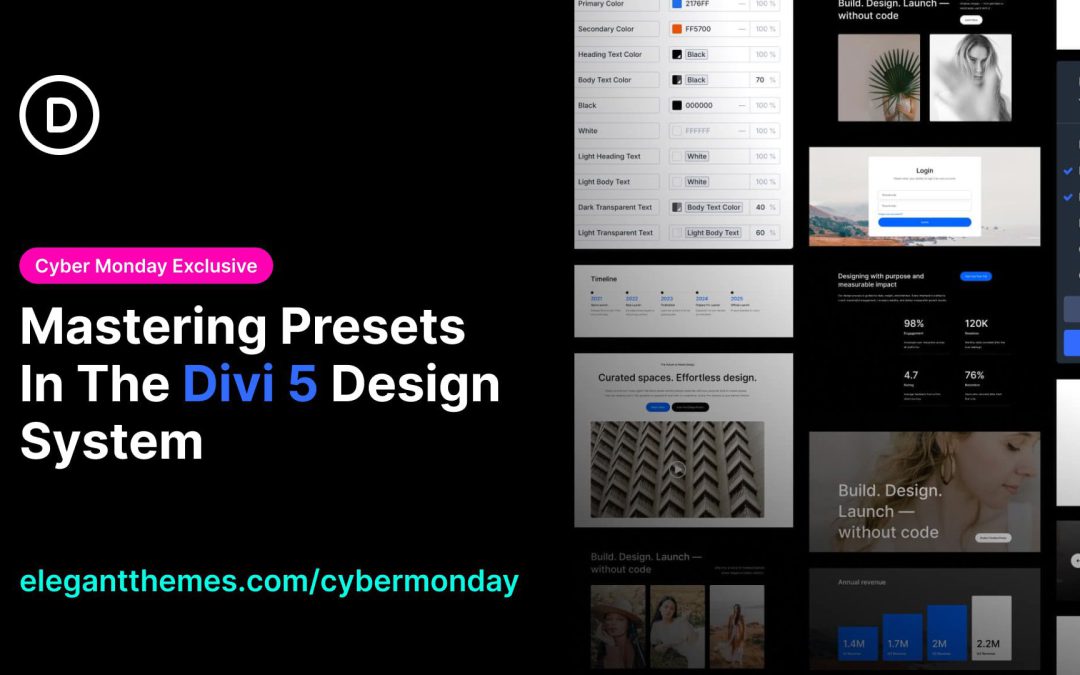
The Divi 5 Design System, exclusive to the Cyber Monday Sale, is a complete styling foundation that includes over 430 premade exports: sections, page templates, and theme builder layouts.
Every layout, section, and module in the system is styled using Divi’s preset system. Understanding presets is crucial for using this download effectively because once you know how to manage and work with them, updating your website becomes faster and more consistent.
When you import the design system, you get three types of presets:
Container Presets style layout structures like sections, rows, and columns, with spacing, backgrounds, and borders already configured.
Element Presets cover individual modules: buttons, images, accordions, blurbs, tabs, toggles, and more. Each one comes pre-styled and ready to apply.
Option Group Presets manage repeating design elements like typography, spacing, borders, and shadows.
Everything is linked through the preset system. Edit a button preset, and every button using it updates automatically. Change a heading style, and it ripples across pages, sections, and templates. This gives you consistency without manually styling each module and lets you complete site-wide redesigns or rebranding much faster.
If you only want the presets without importing all the premade sections and pages, a separate Presets JSON file is included in the download. It imports all module presets, option group presets, and global variables, along with 8 preset demo layouts that showcase them. We’ll cover how to use that in the next section.
Receive the latest WordPress, Divi, SEO and design news in your inbox for FREE from Web Design Solutions Unleashed.
We use cookies to ensure that we give you the best experience on our Web site. If you continue to use this site we will assume that you are happy with it.