Divi 5 gives you more ways to build custom navigation without relying only on the classic Menu module or third-party plugins.
With newer menu components, Interactions, and Canvases, you can design navigation as part of the page instead of forcing every menu into one preset structure.
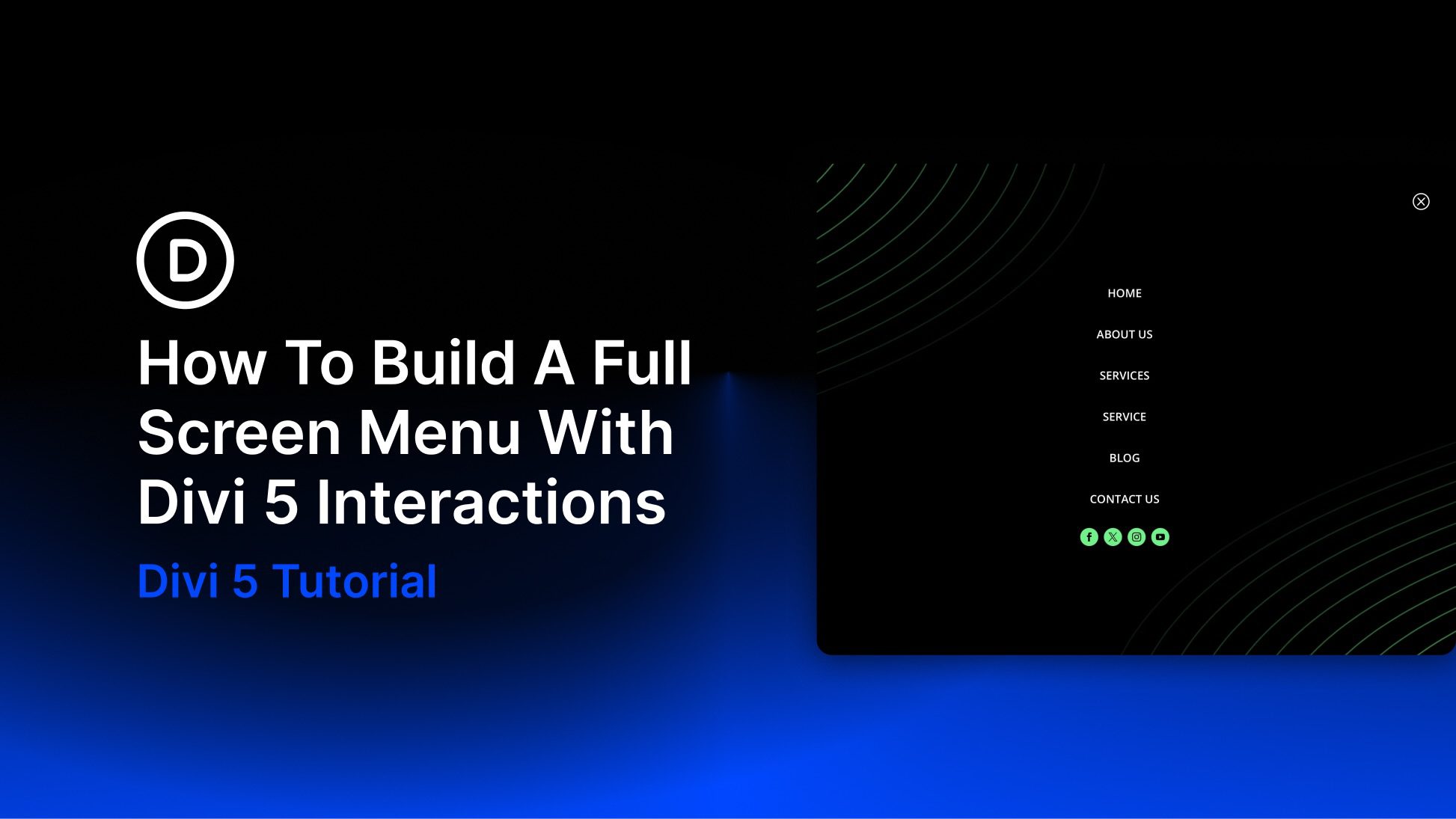
That flexibility works especially well for a full-screen menu. The header can stay clean with a logo, call-to-action button, and hamburger icon. When visitors need navigation, the hamburger icon can reveal a large overlay menu.
In this tutorial, we’ll build a responsive full-screen menu using Divi 5’s Link module, Loop Builder, Interactions, and Canvases.
How Divi 5’s Menu Features Work Together
Divi 5’s newer menu tools are built around smaller, more flexible pieces.
Instead of designing every navigation layout through one Menu module, you can combine individual modules, dynamic menu loops, detached Canvases, and Interactions. This gives you more control over how the menu looks and how it opens or closes.
For this full-screen menu, we’ll use three main pieces.
The Link Module
The Link module lets you add a single customizable link anywhere in your layout. You can style the text, spacing, icon, hover state, sizing, background, border, and other design settings just like you would with other Divi modules.
For this tutorial, we’ll use one Link module inside a menu loop. The loop will repeat that link for each item in a WordPress menu. That gives you the design freedom of a custom link layout while still keeping the menu items managed in WordPress.
Loop Builder
Loop Builder handles the repeated menu items. Instead of adding every menu link manually, you can enable looping on a container, set the query type to Menu, choose a WordPress menu, and use dynamic content to pull in the current menu item text and URL.
This is useful because the full-screen menu stays connected to your WordPress menu. If you change the menu in WordPress later, the loop can reflect those changes without rebuilding each link by hand.
Interactions
Divi 5’s Interactions feature controls the menu behavior. For this build, one Interaction will show the full-screen menu when someone clicks the hamburger icon. Another Interaction will hide the menu when someone clicks the close icon.
Interactions live in the Advanced tab. They can use triggers such as clicks, viewport events, and breakpoint changes. They also support targeting options that make it possible to show, hide, or toggle related elements. The behavior we need is simple: click the hamburger icon to open the overlay, then click the close icon to hide it.
Canvases
Canvases are detached workspaces in Divi 5. They let you build content away from the Main Canvas. That keeps complex overlay elements from cluttering your header while you work.
A Canvas is a good place to build a full-screen menu, popup, slide-in panel, or mega menu. The menu can stay hidden by default, then appear when an Interaction triggers it. The Canvas Portal Module is useful when you need to place a detached Canvas at a specific spot in a page or Theme Builder template.
For this tutorial, we do not need a Canvas Portal. The full-screen menu works as a fixed overlay controlled by Interactions.