
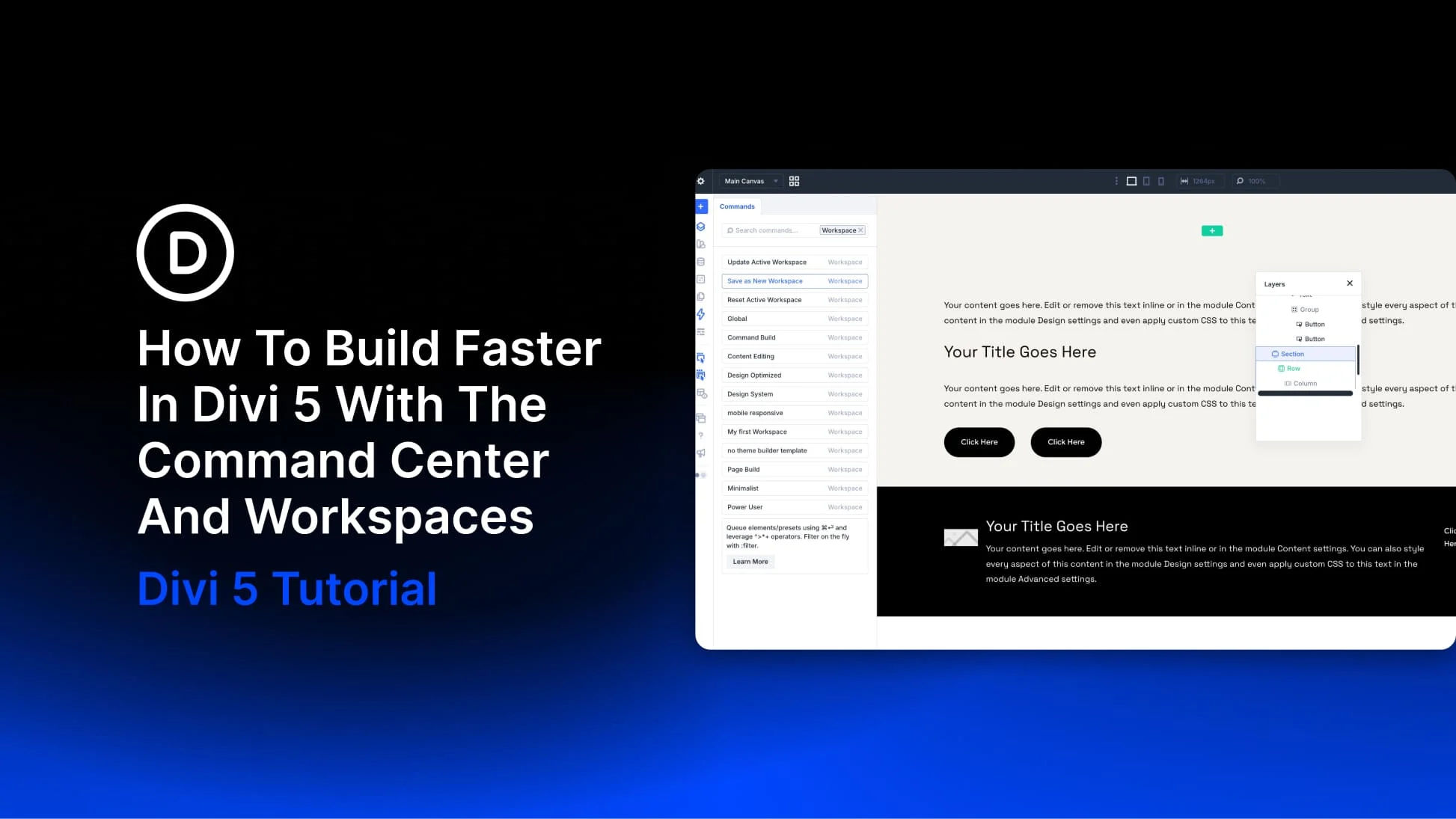
Building faster in the Divi 5 Visual Builder means spending less time opening panels and repeating the same setup. The Command Center handles actions you can name, such as adding modules, applying presets, and opening settings. Workspaces save the panel arrangement you use to carry out those actions.
We will use them together to build a hero section: keep Layers visible while adding its structure, then switch to a Workspace with more room for styling. You can reuse both setups on your next page.
How The Two Tools Work Together
Open the Command Center with Cmd+K on Mac or Ctrl+K on Windows. Type an action, select the matching result, and press Enter. Below, Cmd/Ctrl means Cmd on Mac or Ctrl on Windows.
A Workspace saves your builder preferences and panel arrangement, including which panels are open, where they dock, and their sizes. Switching Workspaces restores that setup without changing the page content.
For this workflow, we use two saved arrangements:
- Command Build: Keep Layers open to select elements and check where queued commands place them.
- Command Style: Close Layers and widen the settings panel for adjusting the elements you have added.
The Command Center lets you switch between them by typing their names. It also opens the settings and tools you need within each setup.