
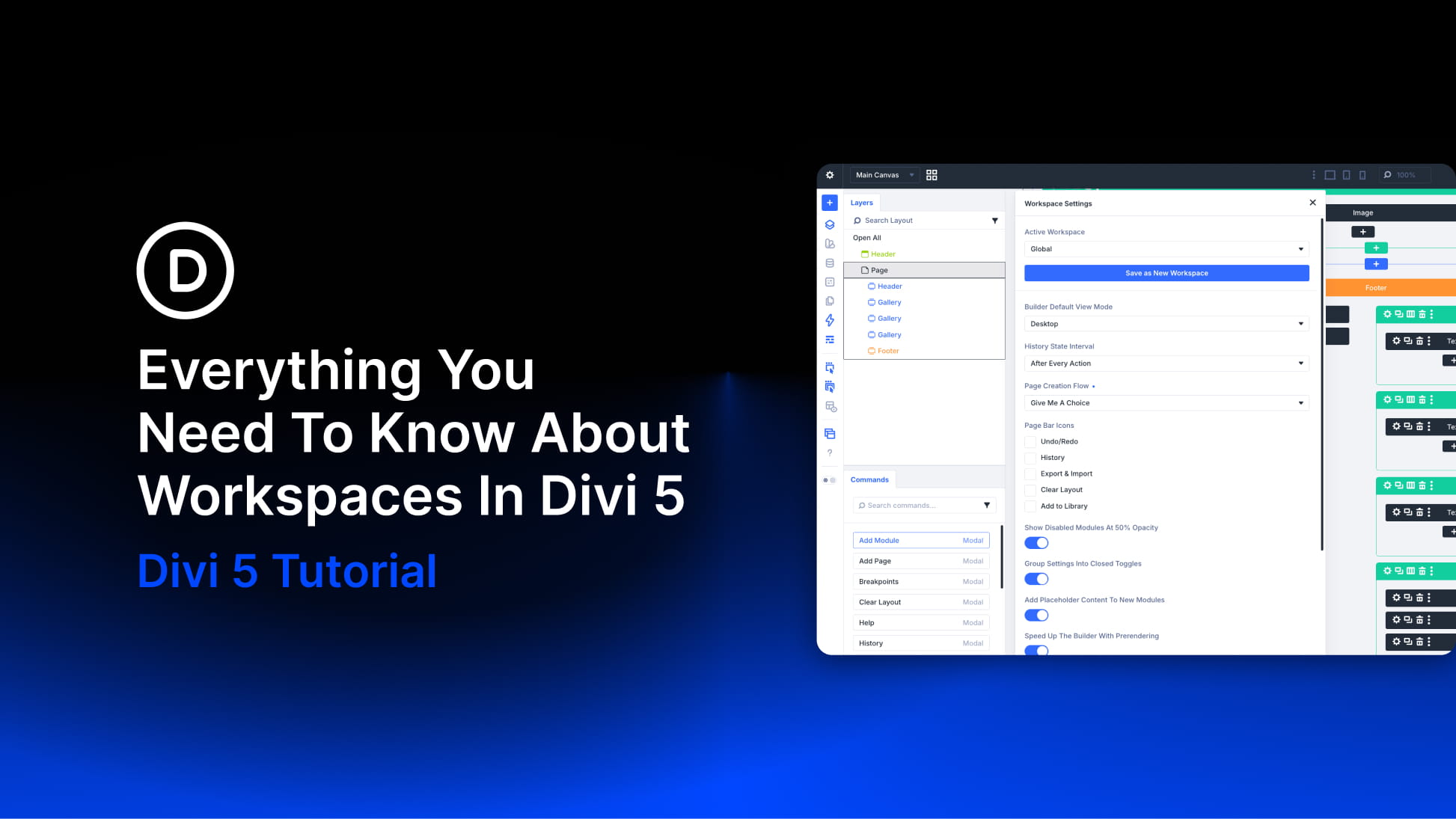
The Divi 5 Visual Builder is highly customizable. You can open and close panels, dock them to either side of the screen, float them over the canvas, resize them, group them into tabs, choose which top-bar icons appear, and switch between light and dark modes.
That flexibility is useful, but it also creates a small problem: the setup that works best for one task is not always the setup you want for another. A layout-heavy build might need the Layers and Inspector panels open. A writing session might need a cleaner canvas. A smaller screen might need fewer panels competing for space.
Divi 5 Workspaces solve that by letting you save complete builder setups and switch between them whenever you need. Instead of rearranging the interface by hand every time your task changes, you can save one workspace for your default build flow, another for content editing, another for responsive checks, and another for focused work.
In this post, we’ll look at what Workspaces save, how they’re organized, how to create and manage your own, how to switch between them with the Command Center, and which workspace setups are worth trying on a real Divi 5 project.