Every web designer has done this at some point. You add an image to a layout, notice the crop is wrong, open Photoshop, adjust the file, export it, upload it again, and move on. Then the client replaces the image. The crop breaks again, the visual rhythm disappears, and the same manual fix starts over.
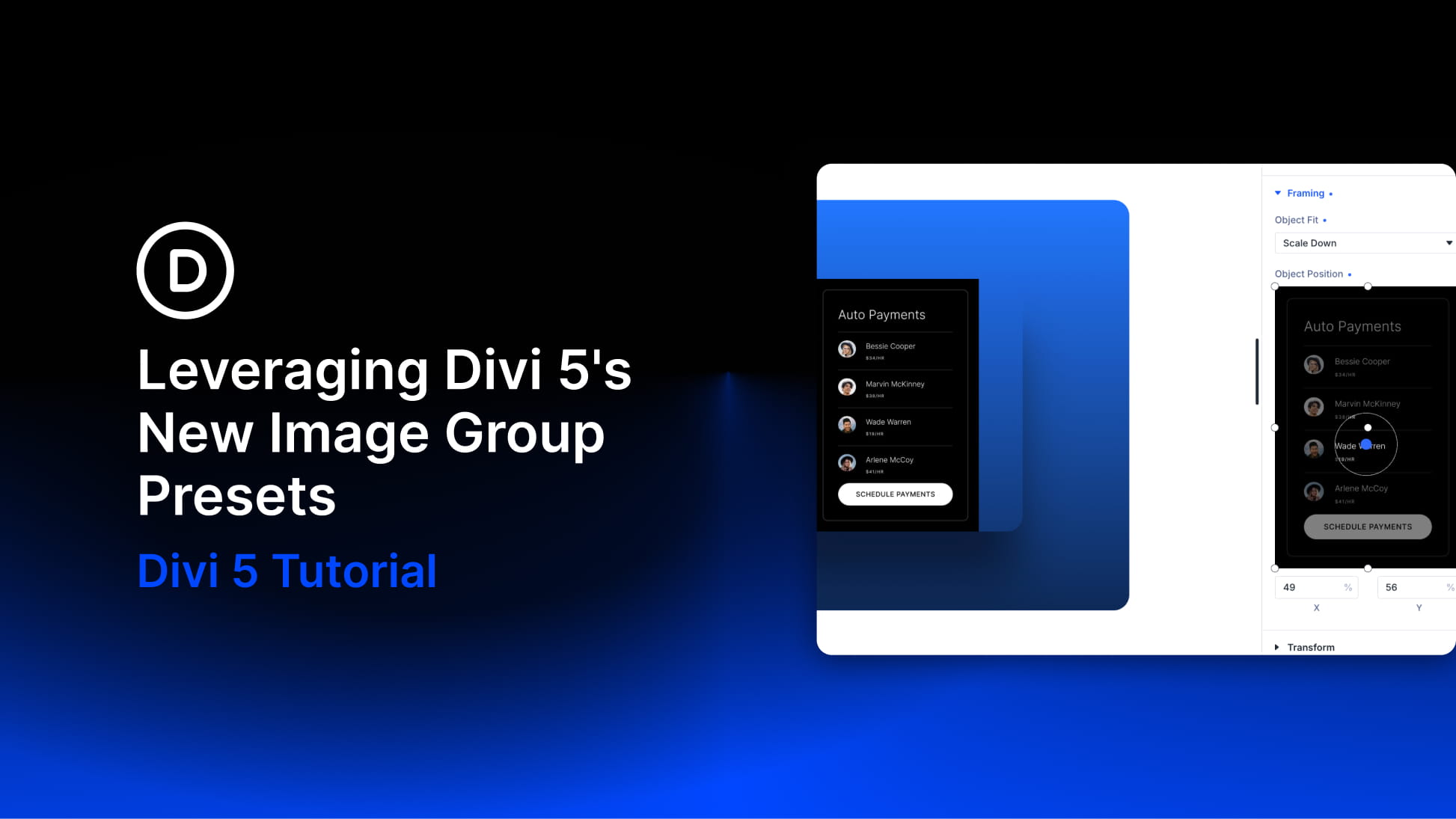
Divi 5 gives you a better way to handle this with Image Group Presets. Instead of editing the image file itself, you save the way an image should behave in the layout. That includes its aspect ratio, how it fills the frame, where the focal point sits, and any other image styling you want to reuse. Apply that preset across your site, and every image follows the same visual rules while the original upload stays untouched.
In this post, we’ll show you how Image Group Presets work, why they reduce the need for external image editing, and how to use them in carousels, product loops, and team sections.
What Are Image Group Presets In Divi 5?
Divi 5’s design system is built around reusable decisions. Colors can be stored as Design Variables. Spacing values can become reusable presets. Borders, shadows, text styles, and other option groups can be saved and applied across different elements. Image Group Presets bring that same idea to images.
Before these image updates, you could style images in Divi, but the reusable system did not fully cover how an image should crop, frame, and behave inside its container. If an image needed a specific crop or focal point, the common workaround was to edit the image file outside the builder.
Divi 5 changes that with three related improvements. Aspect Ratio lets you define a proportional shape for an element in the Sizing option group. For example, you can set an image to 1:1, 4:5, 3:2, or 16:9. The image can still resize across screen sizes, but the proportion stays consistent.