
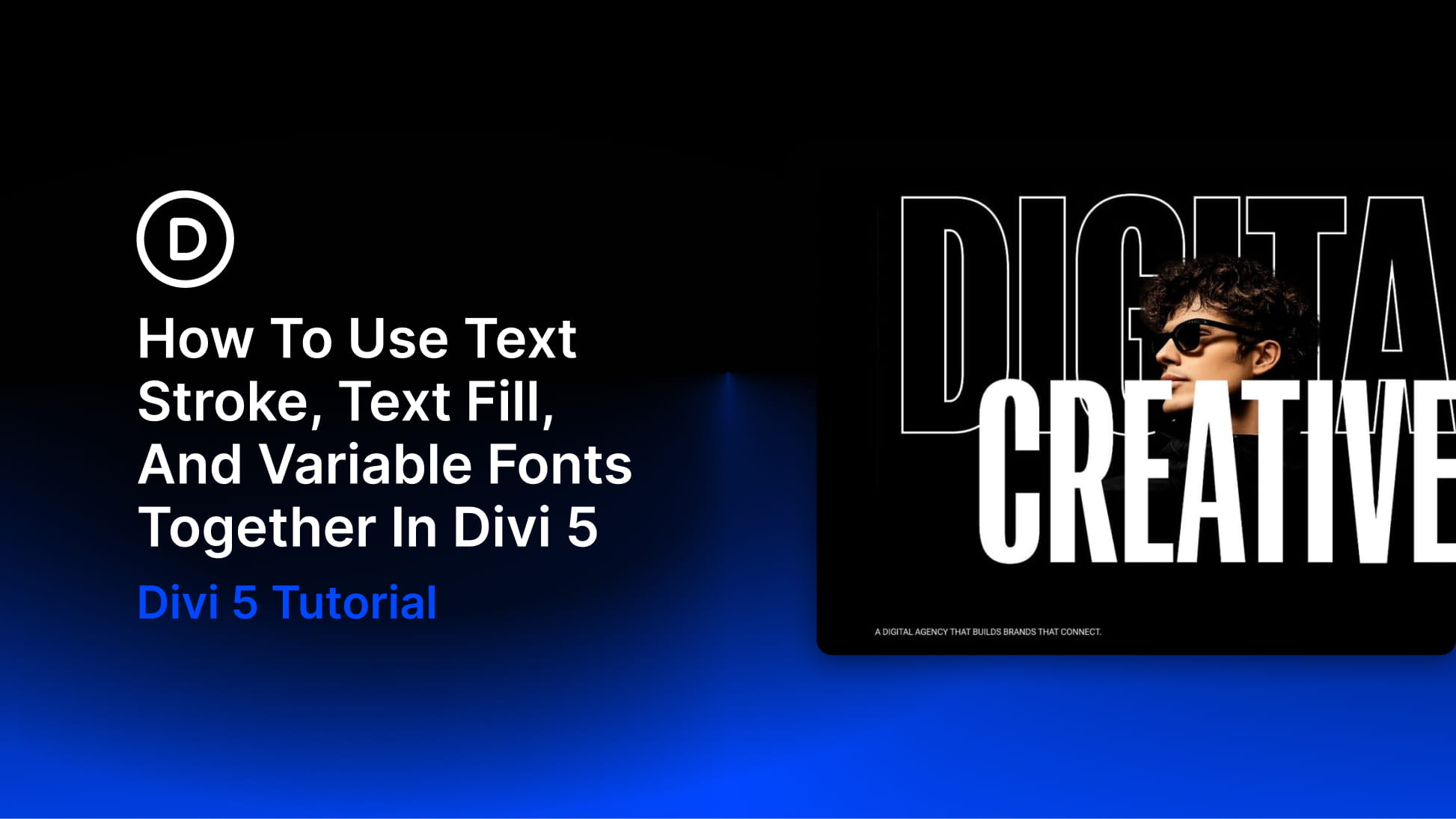
Variable fonts, Text Fill, and Text Stroke are three different typography controls in Divi 5. The font controls the shape of the letters. The fill controls what appears inside them. The stroke controls the edge.
You can use each one on its own, but they become more powerful when you combine them. A variable font can make a heading thick enough for a gradient to show clearly. A transparent fill and stroke can turn a word into a hollow outline. A wide, heavy letterform can hold an image pattern without losing readability.
There is no single recipe. Each design below uses the same three ingredients differently. The first layers outlined and solid text around a cutout photo. The second uses a gradient-filled number with a light stroke. The third fills a full-width heading band with an image pattern.
Along the way, we’ll look at how variable font axes, Text Fill, Text Stroke, Gradient Variables, and presets work together so you can build more intentional typography effects directly inside Divi 5.
Understanding Variable Fonts, Text Fill, And Text Stroke
These settings live in the Design tab of text-based modules and text option groups, including Text, Heading Text, and Title Text. Variable font controls appear near the font selection when the selected font supports them. Fill and stroke settings appear in the text effects area of the same text group.
We covered each fill type in our guide to Divi 5’s text fill options. In this tutorial, we’ll focus on how the settings affect each other once you start combining them.