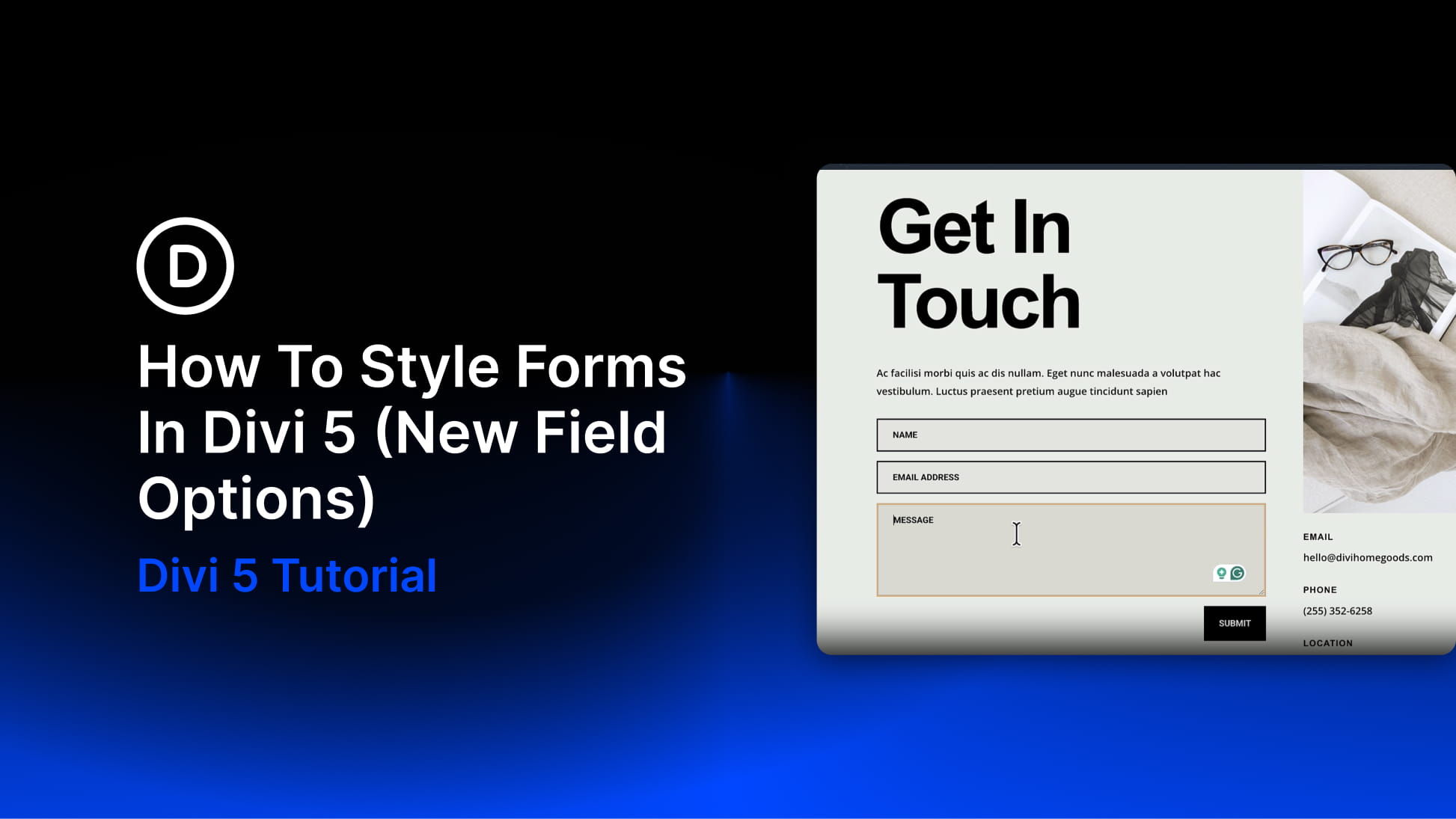
A well-designed form needs more than a background color and a font size. The field text, labels, placeholders, buttons, checkboxes, radio buttons, focus states, and checked states all need to feel like part of the same design system.
Divi 5 makes that easier with new form styling options. Instead of relying on one broad field style, you now get dedicated controls for different field types, along with Focus and Checked editing modes and preset support.
In this post, we’ll walk through the new form field options, show how to style inputs, checkboxes, and radio buttons, and explain how to save those styles as presets so you can reuse them across your site.
What Changed With Form Fields In Divi 5
Divi’s older form styling workflow relied on one broader Field group for many form controls. That made it harder to style each field type on its own terms. Label controls were not always consistent, background options were more limited, and styling one form module did not always feel the same as styling another.
Divi 5 improves that structure by splitting form design into dedicated Input, Checkbox, and Radio option groups. Those groups are shared across Divi’s form-based modules, including Contact Forms, Email Optins, Login forms, Comments, WooCommerce forms, and the new Contact Form 7 module.