
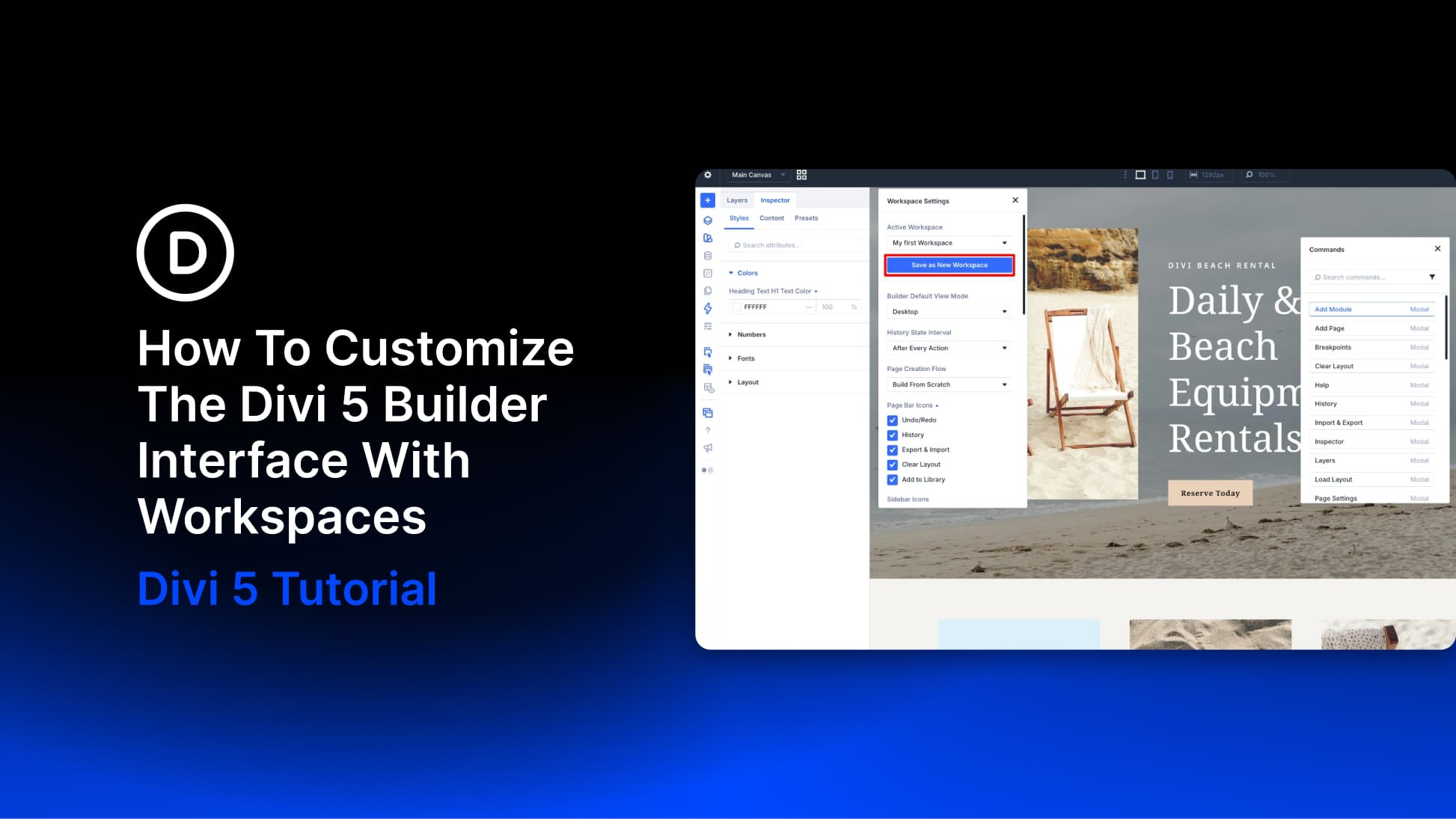
The Divi 5 Visual Builder is highly customizable. Panels can be opened, closed, docked, floated, resized, and combined into tabs. You can also choose which top bar icons appear, change the interface mode and color scheme, set a default view, and control other builder preferences. That flexibility becomes even more useful with Workspaces.
A workspace saves a particular Visual Builder setup so you can return to it later. Instead of using the same interface for every stage of a project, you can create one setup for working on your design system, another for assembling pages, and a cleaner one for editing content.
In this post, we’ll first walk through the interface options that Workspaces can save. Then we’ll use them to create three practical workspaces for different stages of a Divi 5 project.