
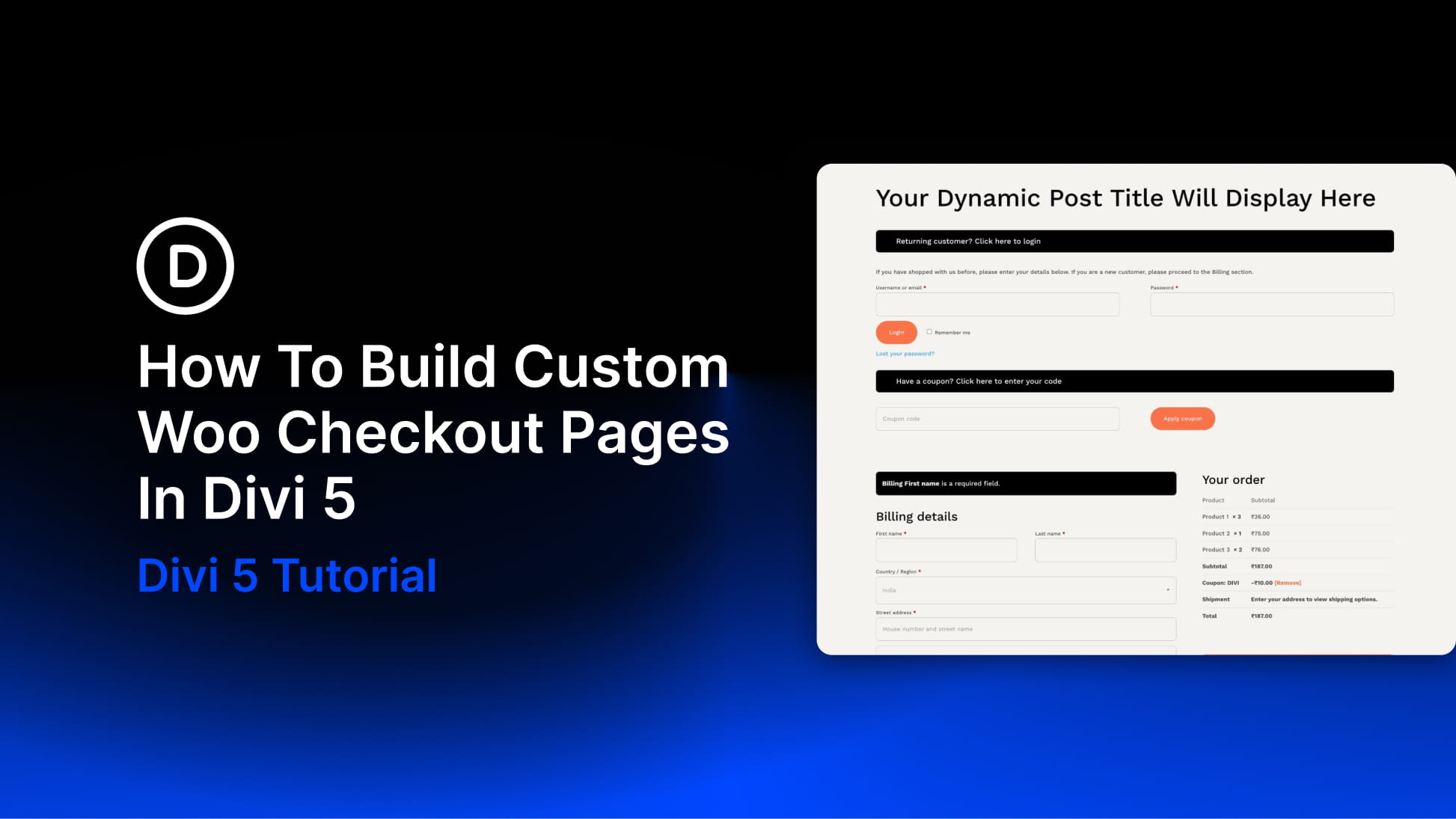
Most WooCommerce stores put real thought into their homepage and product pages, but the checkout often feels like a completely different site. Generic fields, uneven spacing, and a layout that looks out of the box can weaken trust at the exact moment a customer is deciding whether to complete their order.
Divi 5‘s dedicated Woo Checkout modules let you build a branded checkout layout visually, without relying on a single checkout shortcode. In this tutorial, we’ll build a clean, two-column checkout page from scratch using Divi 5, WooCommerce, and Design Variables.
Using Woo Modules In Divi 5
Divi has supported WooCommerce cart and checkout modules for years, so this workflow isn’t about replacing a shortcode-only process. The bigger shift in Divi 5 is that the Woo modules are rebuilt for Divi 5’s current Visual Builder, layout system, and performance-focused architecture, making them easier to place, style, and reuse inside custom WooCommerce templates.
Instead of treating checkout as one rigid block of WooCommerce output, Divi 5 lets you build the page from individual Woo modules. On the checkout side, you get dedicated modules for billing details, shipping details, additional order notes, the order summary, and payment. Each one can be placed, styled, spaced, and responsive-tuned independently.