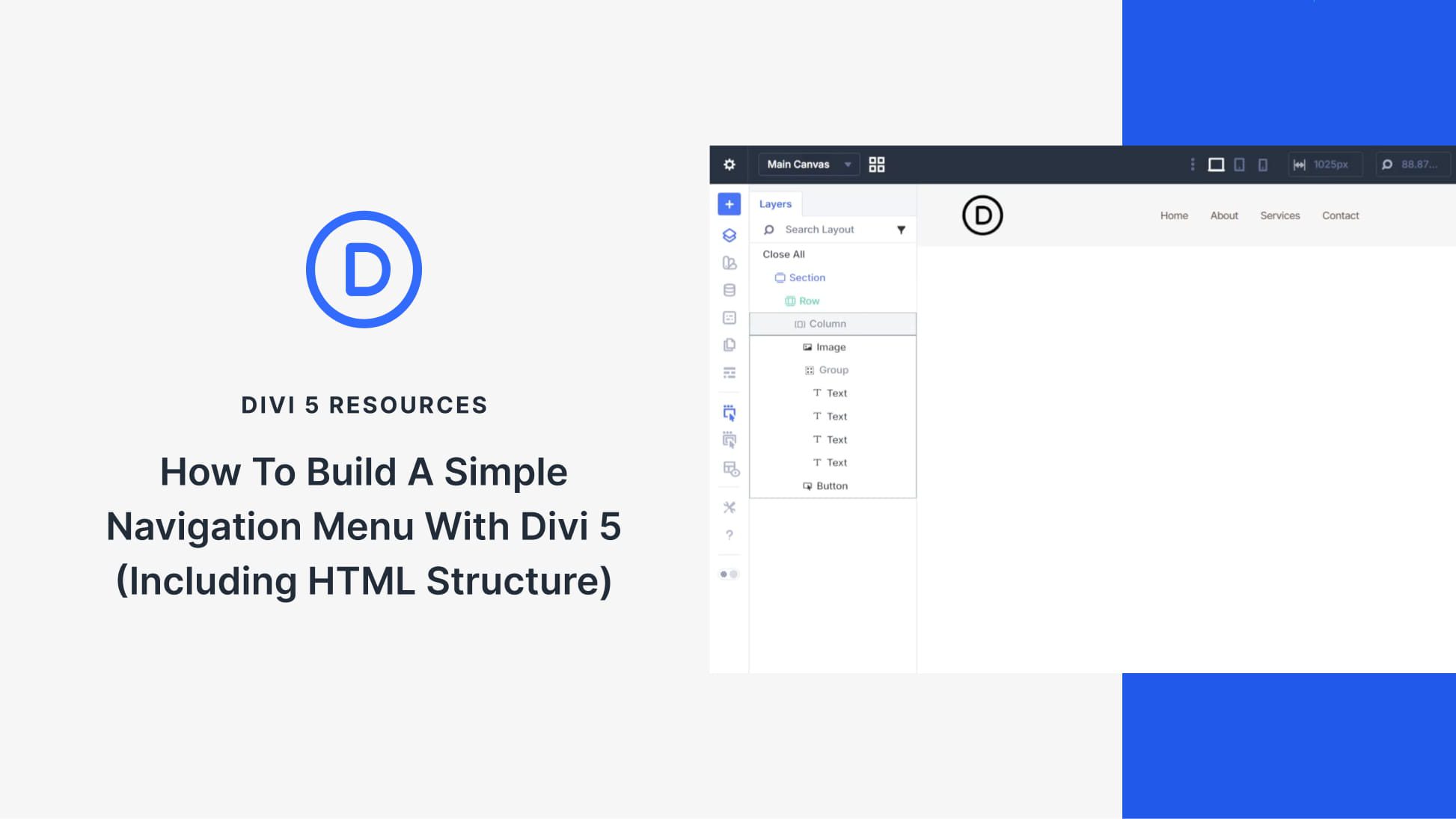
Divi’s Menu module handles many navigation needs, but sometimes you want more options and control. Custom header designs, unique hover effects, or specific semantic HTML requirements can push you beyond what the Menu Module offers. Divi 5‘s semantic elements and HTML wrappers let you build navigation from scratch using basic modules while outputting valid, accessible HTML.
This tutorial demonstrates how to build a navigation menu using an Image Module for the logo, Text Modules for the text-based nav links, and a Button Module for a call to action. The result is a semantic <nav> structure with proper <ul> and <li> elements that browsers, screen readers, and search engines interpret correctly.
Why Build Custom Navigation?
The Menu Module works for out-of-the-box navigation, but custom-built navigation offers advantages in specific scenarios. Using individual modules gives you access to their full styling options. You can use CSS Grid or Flexbox to control your own layout within the navigation (instead of the Menu Module’s predefined layout). You can also include a styled button as part of the navigation itself — semantically inside the <nav> element where it belongs — rather than floating outside it.
Divi 5’s semantic element settings make this a viable and legitimate technique. You control what HTML tags each module outputs, ensuring your custom navigation remains fully accessible and semantically correct.