
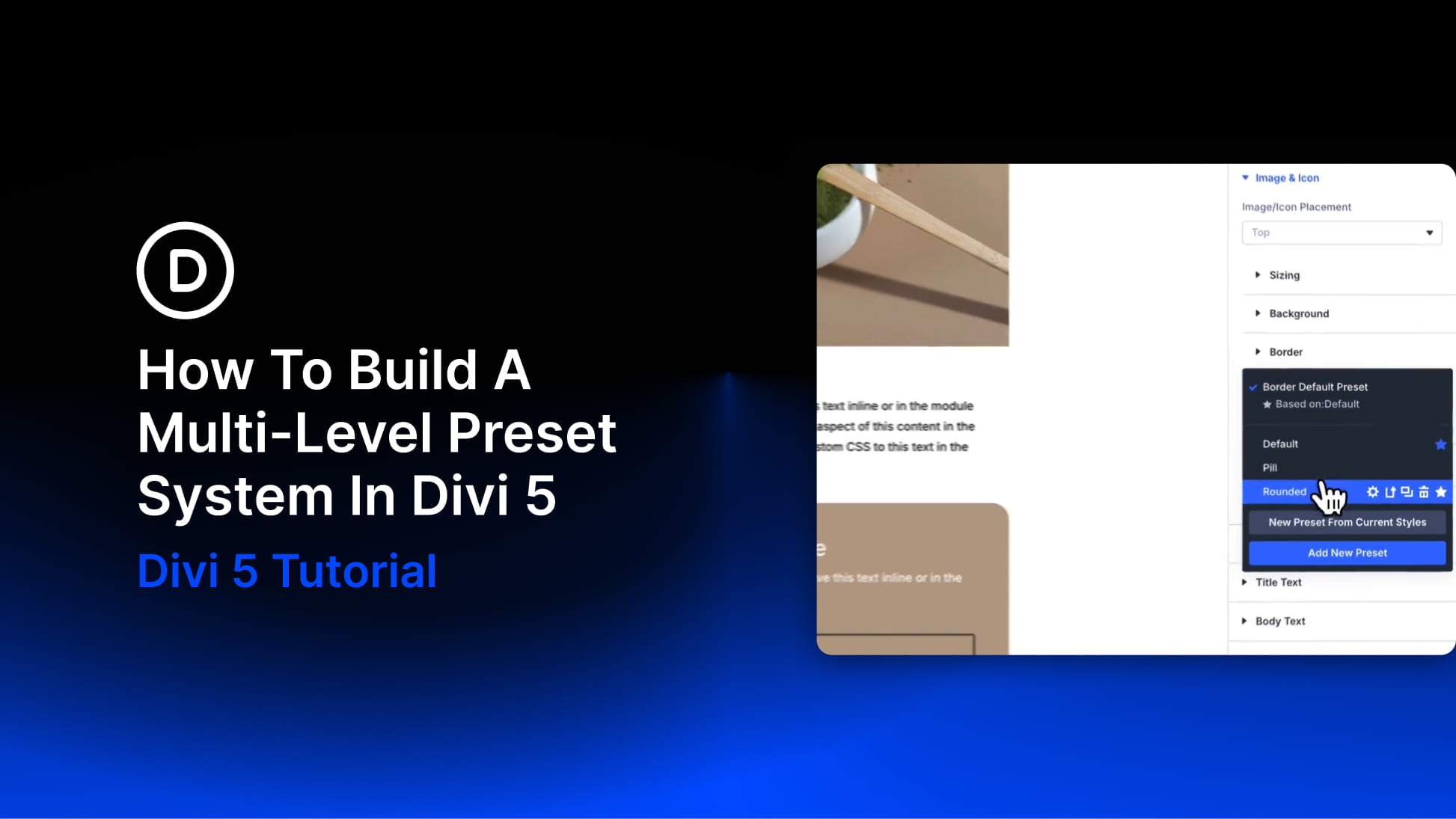
Presets are useful on their own. You save a style, apply it to an element, and avoid rebuilding the same design by hand. But once a site grows, isolated presets are not enough. A button preset, a border preset, a spacing preset, and a color value may all be related, but if they are not connected, every design change still creates extra work.
That is where Divi 5’s multi-level preset system becomes important. Design Variables, Option Group Presets, Element Presets, Composable Settings, and Nested Option Presets can work together as connected layers.
Instead of saving disconnected styles, you can build a system where variables feed presets, smaller presets sit inside larger presets, and Element Presets bring those decisions together into reusable components. Stacking then lets you layer contextual variations without creating a separate preset for every possible use case.
In this guide, we’ll walk through how the system works, where Nested Option Presets fit, why Composable Settings matters, and how to build a preset structure that becomes easier to maintain as your site grows.
How Divi 5’s Multi-Level Preset System Works
Divi 5 presets started as a way to save and reuse styles. Now they can work more like a connected design system. The idea is simple: each layer should reference the layer below it.
A color, font, spacing value, or radius starts as a Design Variable. That variable gets used inside an Option Group Preset. That Option Group Preset can be used on its own, stacked with other Option Group Presets, nested inside another Option Group Preset, or included inside an Element Preset. The Element Preset then becomes a complete reusable component.
When the foundation changes, the connected layers can update with it.The newest piece of this system is Nested Option Presets. The name can sound like a separate preset type, but the idea is more specific than that: a Nested Option Preset is still an Option Group Preset at its core. It becomes “nested” when it is applied to an option group inside another option group or inside a module sub-element.
That matters because many important design decisions live below the top-level module. A Call To Action module has a button. A Blurb has an image and title. A Contact Form has fields and a submit button. With Composable Settings, those sub-elements can expose additional option groups such as Border, Background, Spacing, Sizing, Transform, or Animation. Once those nested option groups are available, they can use presets too.