
A client hands you a logo, maybe a short brand guide, and a few approved hex codes. You open Divi 5, start building in the Visual Builder, and quickly realize the issue is not the layout. It is color variation.
A brand color on its own is rarely enough for a full website. You need lighter versions for backgrounds, darker versions for hover states, muted versions for borders, and transparent versions for overlays or shadows. Guessing those values by eye can make the design feel inconsistent fast.
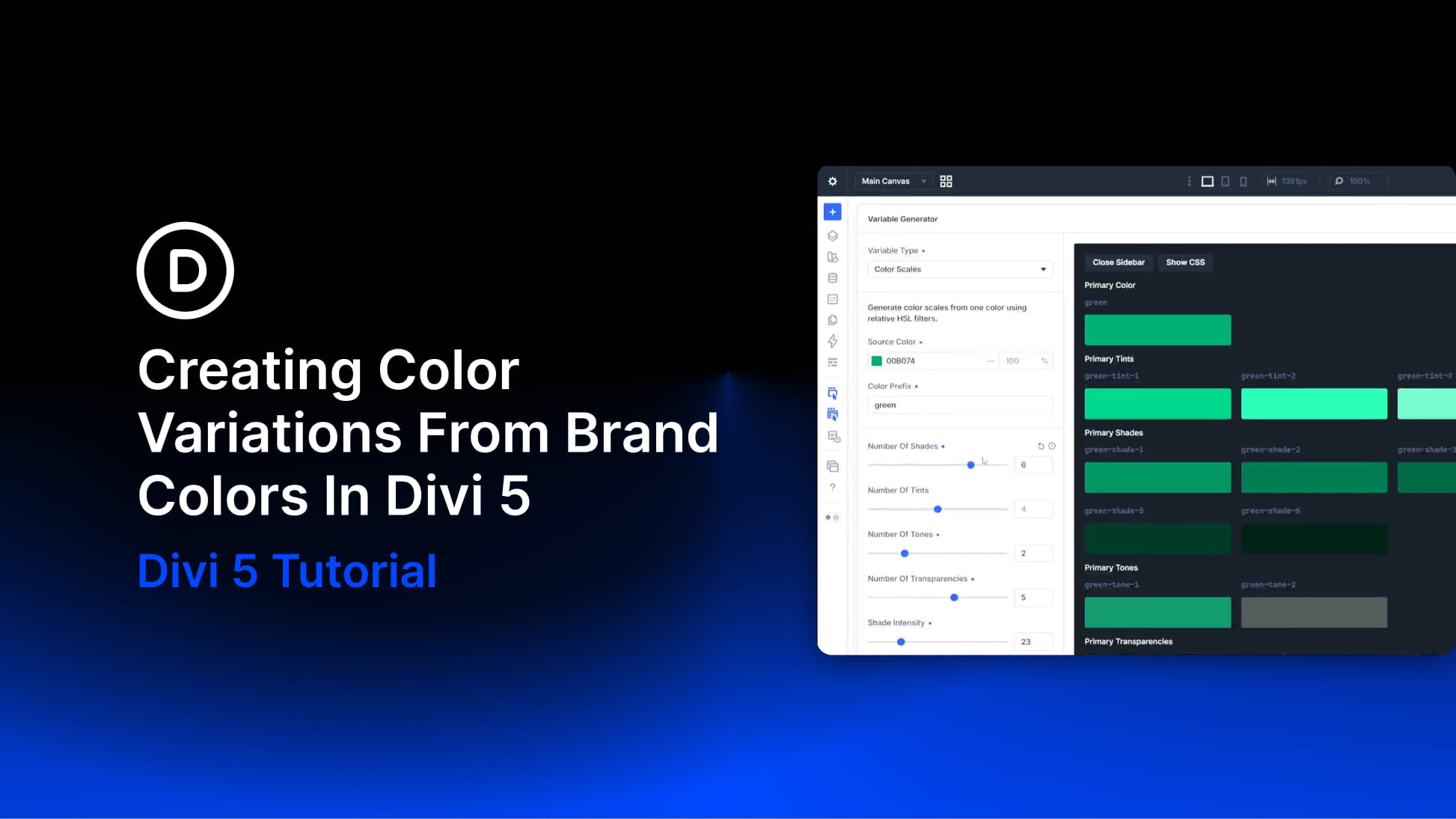
Design Variables let you store reusable colors in Divi 5, but the Color Scale Generator inside Divi 5’s Variable Generator helps you create the supporting colors first. Starting from one source color, it can generate tints, shades, tones, and transparencies that stay relative to the original brand value using relative HSL filters.
This walkthrough covers that exact workflow: taking the brand colors you already have and turning each one into a usable Color Scale in Divi 5.
If you are starting from a single color and still need to create the broader palette around it, read starting from a single color and still need to create our tutorial on how to turn one brand color into an entire Divi 5 color palette first.
When The Full Palette Generator Isn’t The Right Starting Point
Divi 5 includes a broader palette generator for a different situation: when you are starting from one color and need to create a full set of primary, secondary, and accent colors, each with its own supporting variations.
That workflow is useful for greenfield projects where the brand palette is still being defined as part of the website build.
This tutorial is for the opposite situation. The client’s brand colors already exist. You do not need to generate new base colors or rethink the palette. You need lighter, darker, muted, and transparent variations of the exact colors you were given.
That is what the Color Scale Generator is for.
The same Variable Generator panel also includes Color Harmony, which can help if the client’s palette is missing a functional color you still need, such as a success, warning, or notice color. But when the source colors are already locked in, skip Color Harmony and start with Color Scales.